
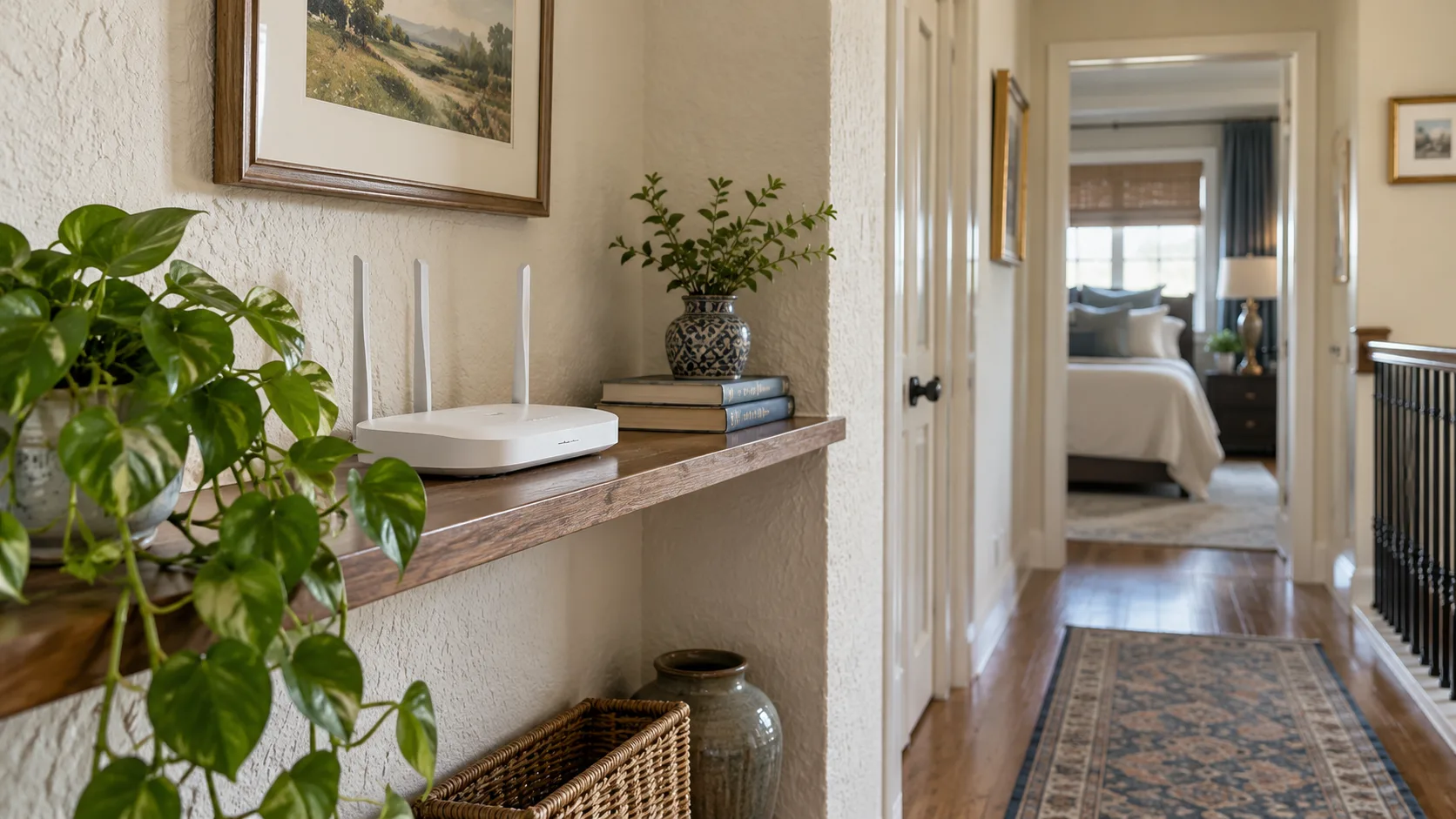
A reliable smart-home network starts with the house you already have: its walls, wiring, device locations, and supporting equipment. The objective is consistent communication where accessories actually operate, not the highest speed-test number beside the router.
Map the required connections, improve placement, and test ordinary device behavior before buying more hardware. A lamp schedule, a battery sensor, and a camera can use different network paths. Treating every failure as weak Wi-Fi can lead to spending money on equipment that cannot solve the problem.
This guide covers planning and practical verification for an existing U.S. home. It does not prescribe enterprise network settings or promise a universal layout. Use the actual router, controller, and device documentation for configuration, and obtain appropriate help for permanent cabling or electrical work.
Map devices and their actual connection paths
Start with a simple floor plan. Mark where the router sits, which rooms have network outlets, and where connected accessories operate. Include the garage, entry, and exterior locations instead of focusing only on the living room.
Now list each important device's path. A Wi-Fi camera connects through an access point. A Zigbee sensor sends its event through a compatible coordinator and any routing devices. A Thread accessory reaches other home networks through a border router. An automation host may then send the resulting command through another connection.
Device or routine | Final location | Connection path | Important dependency |
|---|---|---|---|
Entry camera | Doorway or porch | Device's supported network | Power, upload path, and storage service |
Hallway sensor | Walking route | Supported low-power network | Controller, coverage, and event support |
Lamp schedule | Room outlet or fixture | Device or platform control | Rule owner and available power |
Smart lock | Entry door | Model-specific radio path | Mechanical fit and supported access |
Home automation host | Accessible indoor location | Ethernet or supported Wi-Fi | Continuous power and configuration |
Do not put passwords in this inventory. Device names, locations, model numbers, and dependency roles are enough for the planning sheet. Store credentials and recovery codes securely.
Add the household result beside each device. “Sensor triggers useful hallway light” is a better acceptance goal than “sensor appears online.” It ensures the plan covers the complete routine.
Establish whether the existing problem is local or online
Before rearranging equipment, identify what fails. An internet outage, a weak local wireless link, and an unavailable vendor service can all make an app appear unresponsive while requiring different remedies.
Test a basic supported local action and an online action separately. If several unrelated internet services fail, investigate the internet connection. If only one accessory fails in one corner, look at its power and specific path first.
Use a short observation record:
Time and location of the problem.
Device and attempted action.
Whether physical control still works.
Whether the manufacturer's app works.
Whether local platform control works.
Whether other nearby or unrelated devices fail.
Any recent network, power, or account changes.
A phone streaming video successfully does not establish that every device can communicate. It uses its own radio, network choice, and service path. Likewise, a cloud-connected app working does not prove local discovery is functioning.
Define the problem precisely before buying a new router. “The garage camera disconnects when the garage door is closed” gives you a condition to test. “Our smart home is slow” does not identify the connection involved.
Improve placement before expanding coverage
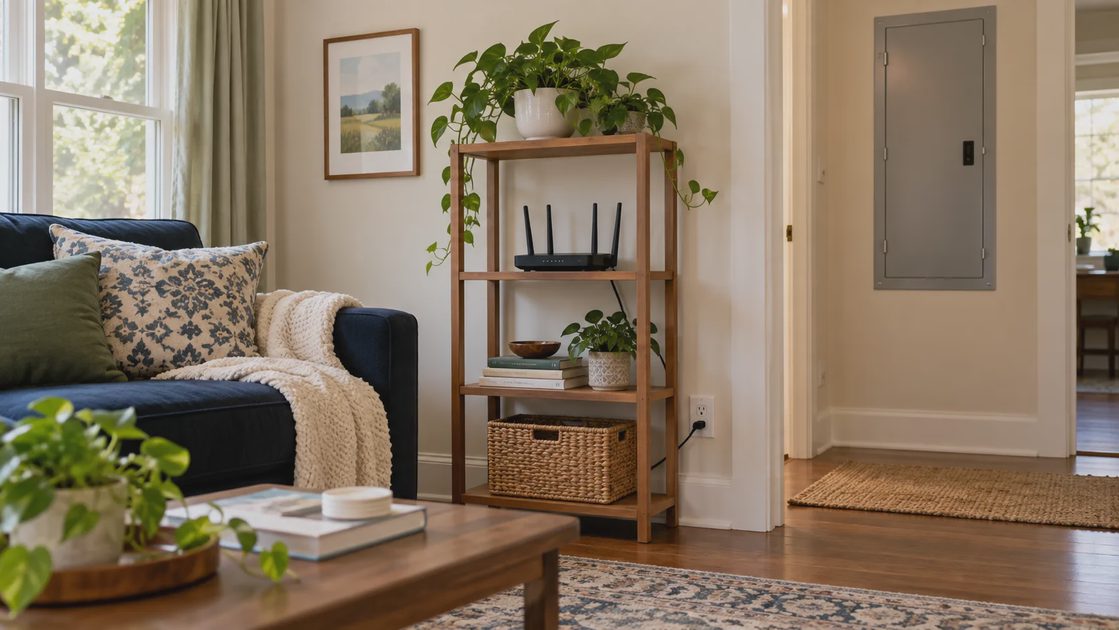
A router hidden in a cabinet may be aesthetically convenient while poorly positioned for the rooms it serves. Review placement constraints, including the modem connection, power, ventilation, and safe cable routing.
Google's placement guidance recommends open, elevated locations for its Wi-Fi products and warns that mesh points need strong connections to one another. This provides a practical manufacturer example: a wireless point should not simply be placed at the weakest end of the house without considering its upstream connection. Google: Wi-Fi device placement.
Try a better position for existing equipment where feasible. Keep ventilation openings clear and avoid hiding networking hardware behind large metal objects. Do not stretch cables across walking routes or relocate equipment into an unsuitable temperature or moisture environment.
Make one change, then repeat the original failed action. If repositioning fixes the specific problem, record the new location and observe it under ordinary conditions before ordering an additional point.
Test with the house in normal use
Doors, furniture, vehicles, and everyday activity can change the environment. Check the garage with a vehicle parked inside and the door in its usual position. Test an exterior camera with the entry door closed. Evaluate a sensor where it will actually be mounted.
A successful trial on a clear table beside the router is not proof about the final installation. Use that nearby trial only to distinguish basic device operation from final-location conditions.
Do not make detection placement worse merely to improve the network. If moving a motion sensor toward the controller means it cannot see the walking route, you need a better connection plan rather than accepting an unusable sensor position.
Choose additional access points by the link they can maintain
A wireless mesh point needs a reliable connection back through the network. The link between points is often called backhaul. The device-to-point connection and the point-to-network connection are separate parts of the route.
If the point sits where it barely reaches the main router, nearby devices may show a strong connection to the point while the overall path remains poor. Place the point where it can serve the target area and maintain its supported upstream link.
Check the system's placement and mesh-testing guidance. Avoid assuming a fixed room count or advertised floor area determines every layout. Wall construction and location can make similarly sized homes behave differently.
Coverage option | Useful when | Check before choosing |
|---|---|---|
Reposition existing router | Current placement is the weak link | Cable reach, ventilation, and results in all affected rooms |
Add a compatible wireless point | A usable upstream link exists | Model compatibility and backhaul quality |
Add a wired access point | An appropriate cable path is available | Router arrangement, cabling, and configuration |
Use supported wired backhaul | Mesh hardware supports that arrangement | Ports, topology, and manufacturer instructions |
Obtain a site assessment | Layout or repeated failures remain unclear | Specific rooms, devices, and symptoms to evaluate |
Do not combine arbitrary networking products just because each advertises mesh support. Use a documented compatible system or a properly configured access-point arrangement. Multiple uncoordinated routers can create extra networks and troubleshooting work.
Use Ethernet where it removes a real wireless dependency
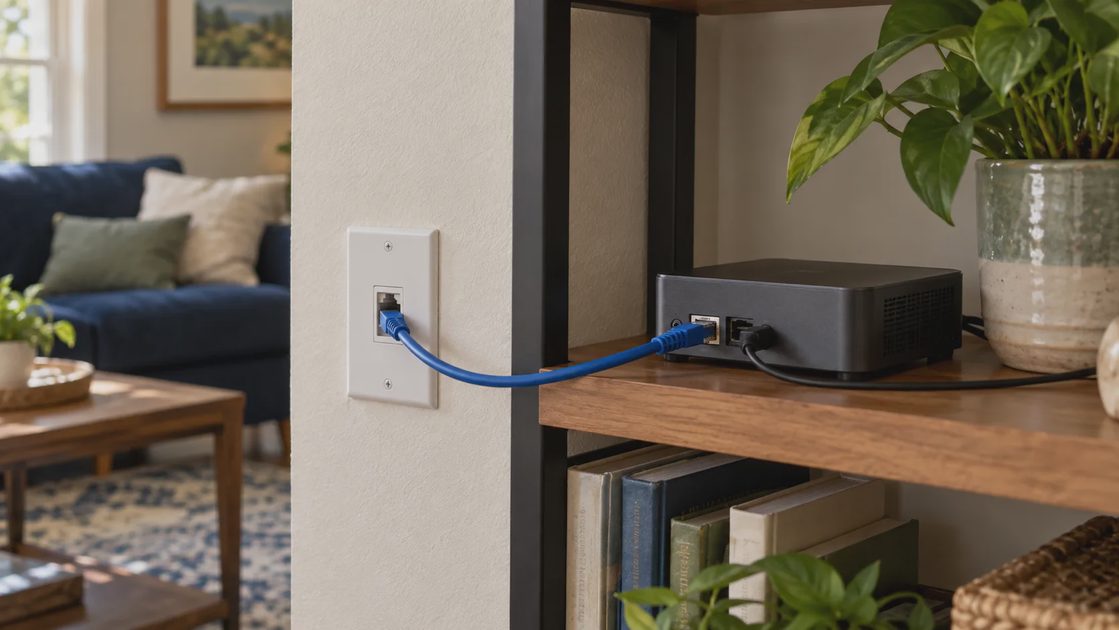
A supported wired connection can be useful for fixed equipment such as an automation host or access point. It gives that part of the path a physical connection, while wireless accessories still need their own coverage.
Google documents supported Ethernet arrangements for its Wi-Fi products and distinguishes models with and without suitable ports. That is a reason to verify the exact hardware and topology before assuming every mesh point can be wired. Google: hardwired Wi-Fi arrangements.
Existing Ethernet outlets may provide an opportunity, but confirm that they are connected and suitable rather than judging from the wall plate. A qualified installer can assess uncertain cabling or plan a permanent run. Do not improvise unsafe power arrangements to place networking equipment elsewhere.
For a camera, include its power requirements and any supported wired networking in the same plan. Ethernet capability does not automatically establish power over Ethernet support. Check the actual product and required power equipment.
A cable is worthwhile when it removes a demonstrated weak link or simplifies a stable installation. There is no need to run cables for a project that already works and does not justify the cost.
Preserve the bands and security the devices support
Some smart-home Wi-Fi devices support only 2.4 GHz. Others support additional bands. Check exact specifications rather than assuming the phone and accessory use the same capabilities.
Google explains that its supported Wi-Fi products can use one network name across multiple bands, with devices selecting supported connections. This illustrates why a combined network name is not itself proof of incompatibility. Follow the accessory's setup guidance if commissioning needs a particular arrangement. Google: Wi-Fi bands.
Do not disable security broadly to make a stubborn accessory connect. The FTC recommends WPA3 or WPA2 encryption, unique network and administration passwords, router updates, and an enabled firewall. Apply compatible secure settings using the router and device instructions. FTC: home Wi-Fi security.
If an old product requires an arrangement that prevents you maintaining appropriate network security, include that limitation in the keep-or-replace decision. Saving an accessory is not useful if the resulting setup is unsuitable for the household.
Keep setup changes limited and reversible
Record any temporary band or setup change and restore the intended supported configuration after commissioning. Renaming a network or changing credentials can affect every accessory that uses it, so plan those changes rather than treating them as harmless single-device adjustments.
A router replacement deserves a migration checklist. Include controllers, cameras, app discovery, account ownership, and the manual fallbacks for affected devices. Do not leave essential equipment dependent on an untested configuration.
Separate visitors without breaking required local communication
A guest network can give visitors internet access without sharing the primary network credentials. Whether smart-home devices belong on a separate network depends on their communication requirements and the router's actual isolation behavior.
A cloud-only accessory and a locally controlled Matter device may need different arrangements. Home Assistant documents local IPv6 and multicast requirements for its Matter integration. Network separation that blocks the required path can interrupt discovery or control even if each device individually reaches the internet. Home Assistant: Matter network requirements.
For an ordinary household, start with the platform's supported network arrangement and basic security. More advanced segmentation should be designed by someone who understands the exact flows and can verify them. Do not assume that enabling a setting called “IoT network” automatically preserves every routine.
Keep visitor access, local device discovery, and remote administration as separate questions. Giving a visitor internet access should not require sharing the home-platform administrator account. Conversely, exposing a controller to the internet is not a general fix for local discovery.
Plan the low-power networks as well as Wi-Fi
A stronger Wi-Fi router does not directly improve a Zigbee sensor's radio link to its coordinator. Map the actual controllers and routing devices for each network the home uses.
Home Assistant's ZHA documentation identifies coordinator placement, routing coverage, and interference as factors in Zigbee troubleshooting. Apply the relevant guidance to that implementation and consult the actual controller instructions elsewhere. Home Assistant: Zigbee network guidance.
For Thread, check the supporting border-router arrangement and the roles of existing devices. Do not assume adding battery sensors extends coverage. The Thread Group describes battery end devices as nonrouting participants. Thread Group: device roles.
Avoid clustering all wireless equipment in one crowded corner simply to hide cables. A tidy installation should also provide appropriate separation, ventilation, maintenance access, and useful coverage.
When a problem involves more than one radio system, change one variable at a time. Simultaneously moving a coordinator, replacing a router, and editing several channels makes the result difficult to interpret.
Verify routines through a repeatable household test
After each meaningful change, test the action that motivated the work. A speed test can help assess a data connection, but it does not establish that a motion event reaches the rule and produces a timely light.
Use a practical acceptance sheet:
Test | Successful result | Variation to include |
|---|---|---|
Sensor-to-light routine | Useful light at the needed moment | Each normal approach route |
Camera connection | Required view and recording remain available | Doors closed and normal household activity |
App control | Correct device performs the action | Different authorized household user |
Manual operation | Room or device remains usable | Phone unavailable |
Network recovery | Supported equipment returns predictably | Controlled low-consequence restart |
Ordinary observation | No recurring missed or unwanted action | Different days and schedules |
The sheet is an observation tool, not a laboratory reliability rating. Record failures precisely and extend observation if the use case happens infrequently.
Do not deliberately interrupt necessary access, medical equipment, or essential climate control to test convenience infrastructure. Use low-consequence devices for controlled recovery checks and follow documented restart procedures.
Keep the finished network maintainable
Save the layout, equipment models, relevant settings, account owners, and recovery procedures. Identify which boxes must stay powered. A household member should not unplug a critical controller to charge a phone because its role was never explained.
Use device names that reflect location and function. Schedule updates sensibly and retain supported backups where applicable. Review the notes after replacing a router, moving a controller, or adding another bridge.
If problems return, compare them with the original record. A repeatable symptom can point to a particular location or dependency; random changes make that evidence harder to use.
Keep the equipment that provides stable service. Reposition when placement is the diagnosed weakness. Add a point or cable when it supplies a missing connection. Replace equipment when a verified limitation remains. A reliable network is built around the home's actual needs and can be understood well enough to maintain after installation day.