An annual smart-home maintenance checklist should cover power, physical condition, software, access, and ordinary household operation. Schedule the review when someone can respond to a problem—not immediately before a trip.
Annual review is a planning checkpoint, not permission to ignore low-battery warnings or required inspection intervals. Smoke alarms, carbon-monoxide alarms, and other life-safety equipment must follow their own manufacturer and local requirements.
Prepare a review you can finish
Annual maintenance is easier when it is a planned review rather than a day of surprise repairs. Set aside a manageable session for the inventory and separate time for work that needs professional help or a longer outage. The aim is to find and assign problems, not to complete every possible task at once.
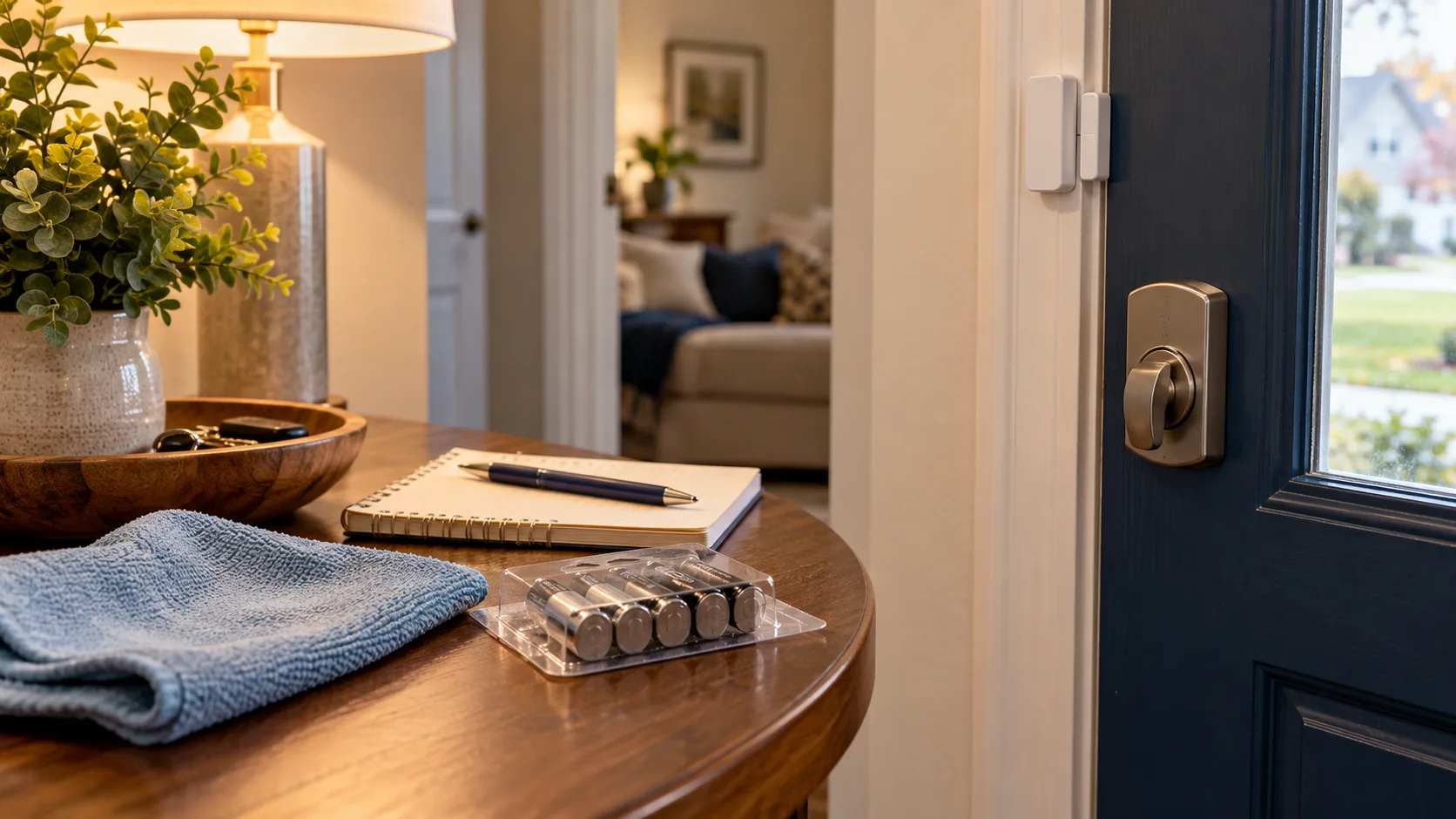
Gather the existing device list, model information, official manuals, and maintenance notes. Have approved replacement batteries only where needed. Keep recovery information accessible to the authorized account owner, but do not copy credentials into the general checklist.
Tell household members which nonessential functions may be briefly interrupted. Choose a time when entry, heating or cooling, work calls, and other important activities can continue normally. A maintenance session should make the home more dependable without creating an avoidable disruption.
Use three task labels: complete now, schedule, and monitor. A loose removable sensor cover may be a small immediate task. A recurring electrical fault belongs in scheduled qualified service. An unexplained occasional alert may need a documented observation period before anyone buys replacement hardware.
Walk the house with the inventory in hand
Record each device's model, location, owner account, connection path, power source, and manual. Add the support policy when available. Keep passwords and setup codes in a secure location, separate from a broadly shared checklist.
Look for loose mounts, obstructed sensors, damaged cables, deteriorated seals, and anything unusually warm. Check smart-lock alignment and ordinary manual operation.
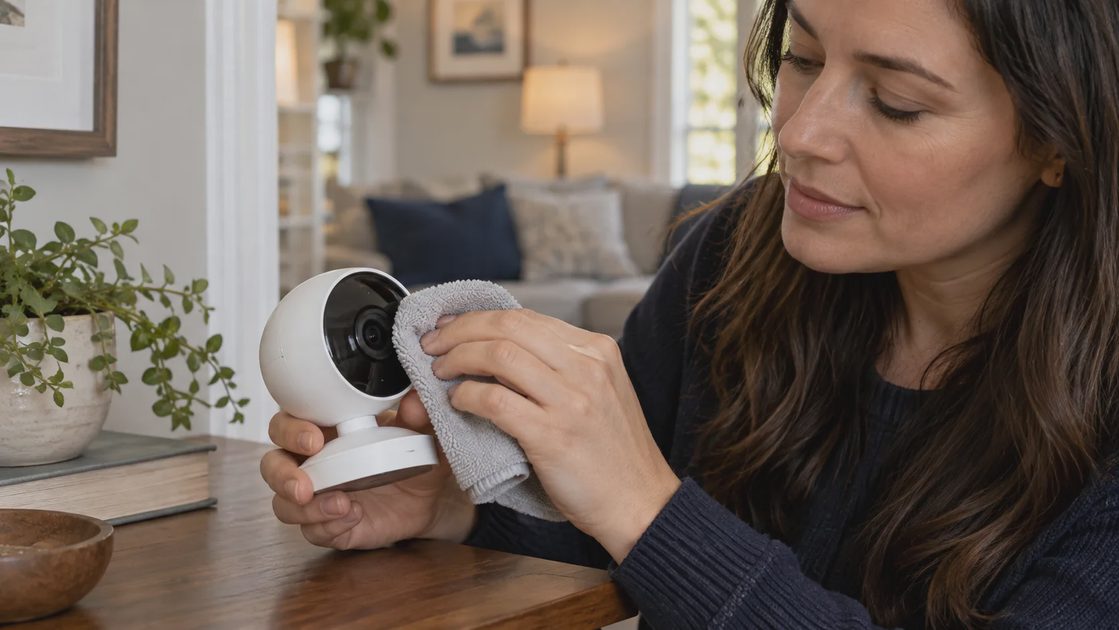
Clean according to the exact product instructions. Google's cleaning guide illustrates why methods vary between thermostats, cameras, locks, and other devices. Do not assume the same liquid or spray is safe for all equipment.
Use an inventory that follows ownership
The inventory should explain how the system is maintained, not just how many devices it contains. A product name without a location, owner, or dependency tells the next person very little.
Inventory field | Why it belongs in the record |
|---|---|
Device and exact model | Identifies the correct manual and replacement parts |
Location and household function | Connects the product to a real need |
Connection and dependencies | Identifies bridge, controller, network, or service requirements |
Account owner | Shows who can authorize changes and recovery |
Power or battery requirement | Supports maintenance and outage planning |
Support and update route | Explains where reliable software information comes from |
Manual alternative | Preserves ordinary use when automation fails |
Last review and next action | Prevents the same unresolved issue from being rediscovered |
Include devices that are easy to forget: a bridge behind furniture, an outdoor sensor, a camera recorder, or a plug controlling seasonal lighting. Include subscriptions and integrations that maintain a useful function even if they have no visible hardware.
Remove uncertainty from the record gradually. If you do not know which bridge a sensor uses, mark the dependency as unconfirmed and investigate it. Do not fill the cell with a confident guess. The inventory is valuable because it makes uncertainty visible.
Inspect physical condition before changing software
Walk through the home and look for ordinary maintenance issues: loose mounting, blocked lenses, disturbed cables, covered sensors, and equipment moved into unsuitable locations. Furniture changes can affect a sensor's view or wireless coverage without changing any software.
For door locks, check normal mechanical operation through the manufacturer's guidance. A door that is difficult to close or align should not be treated solely as a battery or automation problem. Preserve entry and exit access during the review.
For plugs and externally powered devices, inspect accessible connectors and cables without opening electrical assemblies. Damage, discoloration, unusual heat, or odor warrants stopping use and obtaining appropriate help. A maintenance checklist is not permission to investigate live wiring.
For sensors and cameras, check whether the installation still matches the intended job. A motion sensor aimed at an unused route may be perfectly functional and practically ineffective. Record placement issues separately from product failures so the remedy addresses the right cause.
Clean according to the device, not one household rule
Different materials, lenses, openings, and seals require different cleaning methods. Follow the exact model's guidance. Google's cleaning documentation illustrates why instructions vary across devices; it should not be generalized to an unrelated brand or product.
Before cleaning, establish whether power should be disconnected and which surfaces are user-serviceable. Do not spray cleaning fluid into openings or assume a product can tolerate the method used on a kitchen surface. Outdoor ratings also do not automatically authorize pressure washing or abrasive treatment.
Record a cleaning task only when it contributes to function or preservation. A camera lens obstructed by dirt matters because it affects the useful view. A sensor covered by a decoration matters because detection may change. Maintenance does not require dismantling a working product to make it look new.
After cleaning, check the relevant function. Verify the intended view or detection route rather than assuming physical cleanliness guarantees operation. If mounting was disturbed, restore it using the documented method.
Review batteries by model
Check alerts and maintenance records. Replace or recharge only using the specified chemistry and type. Keep small batteries away from children and pets.
The Aqara Door and Window Sensor P2 manual specifies a replaceable battery for that particular model. It does not establish the battery type of another sensor that looks similar.
After replacement, confirm that the device reports the expected event. Note the date and any unusually short service life, which may justify further diagnosis.
Review batteries with model-specific information
Create a battery list from official manuals, not from visual similarity. Devices can differ in chemistry, size, polarity, and replacement procedure. The Aqara P2 manual identifies a replaceable CR123A battery for that model; it does not establish the battery choice for every Aqara sensor.
Battery review item | What to record |
|---|---|
Exact device model | The manual governing replacement |
Approved battery type | Size and chemistry specified by the manufacturer |
Status indication | Current low-battery alert or reported condition |
Replacement date | Actual date, not an estimated history |
Post-replacement test | State reporting and the relevant household function |
Do not use an annual review to impose a universal replacement interval. Consumption depends on the product, environment, and usage. Follow manufacturer requirements and actual condition rather than discarding every battery once a year.
Inspect user-accessible compartments as permitted. If you find leakage, corrosion, swelling, or other damage, follow the manufacturer's service guidance and appropriate battery handling instructions. Do not improvise repairs to a sealed pack.
After replacement, verify more than the disappearance of a low-battery icon. Open and close a supported contact sensor normally, or test the intended noncritical motion route. Ensure any linked routine still observes the correct device.
Update in manageable groups
Check supported firmware and app updates. Read material release notes and preserve supported backups before changing a controller or integration.
Update one manageable part of the system, then test its important behavior. Avoid combining a router replacement, controller migration, and mass device update in one session.
Find devices that no longer receive security support. Record them for a separate keep-or-replace decision based on role and exposure.
Update in groups you can recover
Check the camera, bridge, controller, and application separately where applicable. A phone app update does not necessarily update the hardware. Use official support pages and documented update mechanisms for the exact models.
Before a significant controller update, create a supported backup where the platform provides one and confirm what it includes. A backup that covers automations may not include every radio pairing, account authorization, or historical database. Record the documented restoration path.
Update a manageable group, then verify normal functions before moving on. Avoid updating every layer at once immediately before the household needs the system. If a problem appears, smaller groups make the likely change easier to identify.
A practical update record includes:
Device or platform updated.
Previous and new version where available.
Date and official update route.
Relevant functions checked afterward.
Any unresolved issue or recovery action.
Do not install unofficial firmware merely to make a maintenance list look current. Such changes are a separate project with their own support and recovery implications. Annual upkeep should improve confidence in the system you actually maintain.
Remove obsolete access and rules
Review household invitations, guest codes, camera access, integration authorizations, and recovery contacts. Remove what is no longer needed through supported controls.
FTC camera guidance provides a useful baseline for the camera-specific portion of this review.
Walk through schedules and routines. Delete duplicates carefully after recording dependencies. Update holiday, work, and school assumptions. A technically functioning routine can still be wrong for the household.
Remove access that no longer has a purpose
Review who can administer the system, view cameras, unlock doors, or change schedules. Former residents, old helpers, and abandoned integrations can remain connected after their role ends.
Use individual permissions and vendor-supported revocation procedures. Review accounts and integrations separately. Removing someone from a home platform may not remove a camera invitation in the manufacturer's service, and deleting an app from a phone does not close the underlying account.
For temporary access, confirm both the intended end date and the current status. Check that necessary household members still have appropriate access after the cleanup. The goal is clear ownership, not a configuration in which only one unavailable person can operate everything.
Review remote access settings, authentication, and recovery channels through current official guidance. Keep the actual passwords and recovery codes outside the general maintenance report. It should describe who owns recovery and where authorized access is arranged without becoming a credential directory.
Check automations against this year's household
An automation can survive long after the household pattern that justified it. School hours change, people work from home, rooms gain new uses, and seasonal equipment is removed. Review the rule's purpose as well as whether it runs without errors.
For each important routine, ask:
Does the trigger still represent the intended situation?
Does the action still help the person using the space?
Can someone pause or override it easily?
Does another rule try to control the same function?
Does the rule refer to devices that still exist?
Pause an unnecessary nonessential rule before deleting it when a reversible trial is useful. Document the reason and check ordinary use. A device can stay while its unsuitable automation is removed.
Separate maintenance from a whole-system redesign. If the review identifies a larger simplification opportunity, record it for the smart-home audit. Do not turn a battery check into an unplanned migration that leaves the household partly configured.
Practice the fallback without putting the household at risk
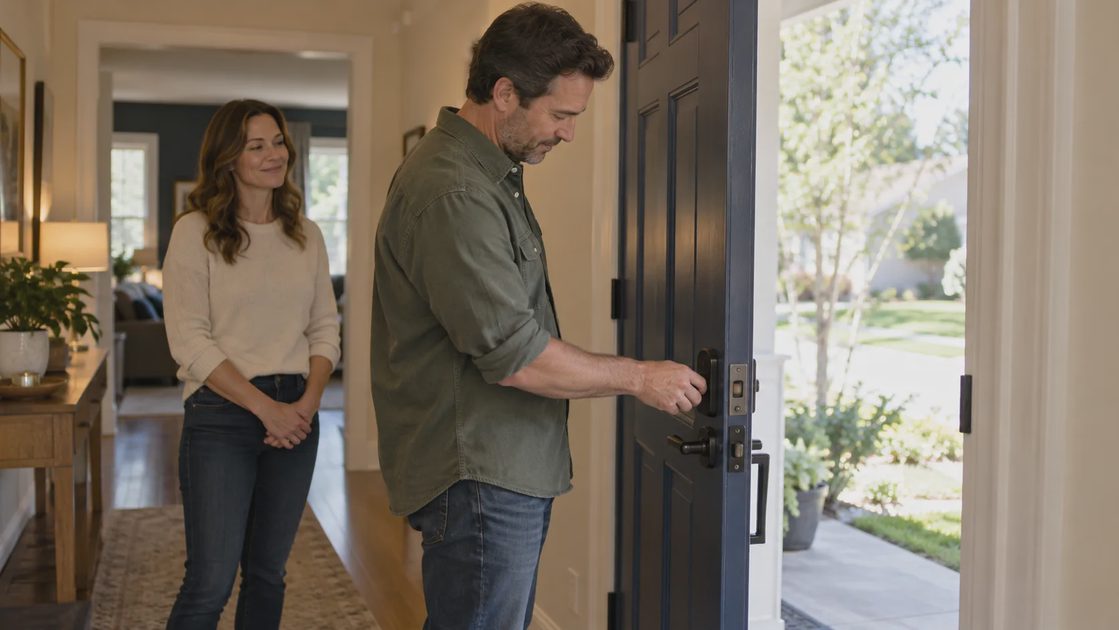
Confirm physical light controls, thermostat adjustment, and safe door entry and exit. Explain them to another adult in the home.
Use a controlled, documented test where appropriate, preserving necessary services and backup access. Do not interrupt medical equipment, life-safety functions, or required climate control to imitate an outage.
Check that supported backups can be found and that recovery instructions make sense to someone other than the original installer.
Practice fallback with safeguards in place
Fallback testing should demonstrate that people can use ordinary functions when an app or service is unavailable. It should not create a lockout, interrupt necessary heating, or disable critical equipment to produce a dramatic test.
Function | Safe review question | What to preserve |
|---|---|---|
Lighting | Can a resident use the intended physical control? | A normal illuminated route |
Door access | Is documented backup access known and available? | Safe entry and exit throughout the review |
Temperature | Can an authorized person make a normal local adjustment? | Needed household comfort and equipment safeguards |
Cameras | Is outage behavior understood from supported documentation? | Existing necessary coverage and recording |
Controller | Is the supported backup and recovery process recorded? | Current configuration until recovery is justified |
Ask another household member to explain the fallback in their own words. If it depends on an obscure app sequence or on borrowing your phone, improve the instructions or controls. A written procedure is useful only if the intended person can follow it.
Do not assume a product works offline because its protocol permits local communication. The actual installation, controller, and automation may still depend on other services. Verify the supported behavior without disrupting necessary functions.
Finish with a short action list
Finding | Next action |
|---|---|
Battery warning or failed sensor event | Follow the model's maintenance procedure and retest |
Unused guest access | Remove it and confirm current household access |
Unsupported sensitive device | Review replacement or reduced exposure |
Conflicting routines | Keep one rule owner and retest |
Physical damage | Stop use where necessary and arrange qualified diagnosis |
Close the review when actions are assigned, not when every device has been glanced at. The aim is a home whose maintenance remains understandable.
Close the review with assigned work
An annual checklist is complete when findings have clear outcomes. Separate successful checks from unresolved issues so a checked box does not hide a known defect.
Use this action log:
Finding | Action | Owner | Timing | Completion evidence |
|---|---|---|---|---|
Enter observed issue | State a specific remedy or investigation | Name responsible person | Set realistic date | Record the relevant function test |
Prioritize safe access, damaged equipment, security support, and functions the household relies on. Cosmetic improvements and speculative upgrades can wait. If a task requires qualified service, schedule it rather than providing an unsafe workaround.
Keep the inventory and completed action record where authorized household members can find them. Set the next review, and also revisit relevant items after a router replacement, move, account change, or major system update. Annual maintenance supplies the baseline; significant changes deserve their own focused check.