To secure a smart camera, protect the account and network, keep supported software current, and limit who can view or change it. Then review what the camera sees and how footage is retained.
You do not have to disable every useful feature. The aim is to keep the functions your household needs while removing unnecessary access and exposure.
Define the job before reviewing settings
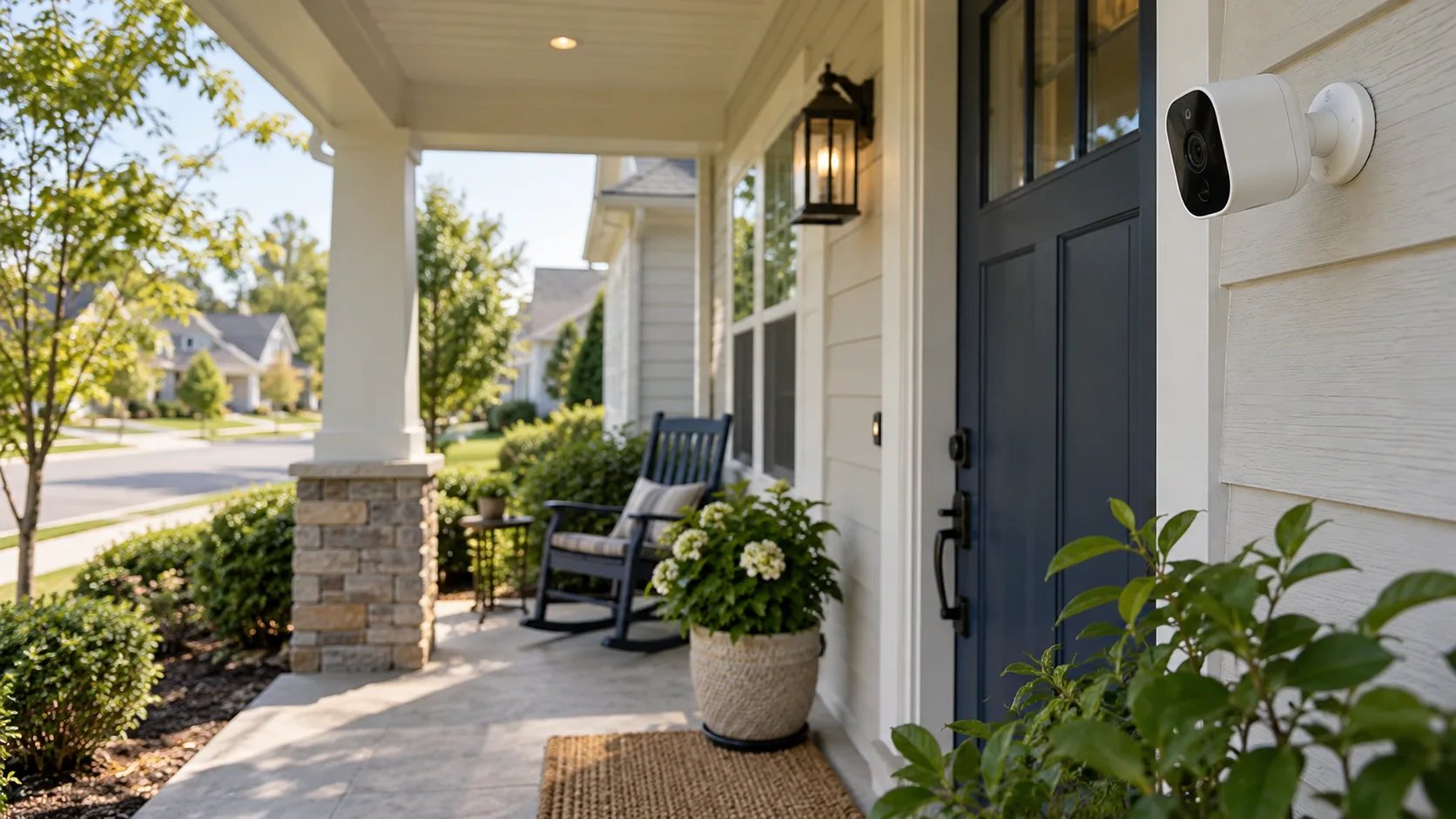
A camera should have a specific household purpose: observing a package area, checking a garage entrance, or providing a view of a particular outdoor approach. That purpose determines where it belongs, who needs access, and how much footage is useful.
Without a clear purpose, it is easy to enable every available feature. Continuous recording, audio, broad notifications, and remote viewing may all be convenient, but they do not automatically improve the intended task. Each feature should earn its place by helping the household do something it actually needs.
Write one sentence describing the job. For example, “Show activity at the front entry so we can check deliveries.” Then list what the camera does not need to observe. Bedrooms, bathrooms, private conversations, and unrelated neighboring areas should not become part of the view merely because the lens is wide enough.
This is a practical privacy decision as well as a security decision. A well-protected account does not make unnecessarily intrusive recording appropriate. Start with a useful, limited field of view, then protect the access to it.
Separate the security questions into four layers
Camera security is easier to manage when you separate the parts of the system. A strong password protects one layer, but the device, home network, viewing permissions, and stored footage also need attention.
Layer | Question to answer | Household action |
|---|---|---|
Device and software | Is the exact model receiving supported updates? | Check official support and update settings |
Account and viewers | Who can see, change, or share the feed? | Use individual invitations and appropriate permissions |
Network and remote path | How does viewing traffic reach the camera? | Use documented access methods and secure networking |
Footage and notifications | What is retained, exported, or shown elsewhere? | Limit storage and alerts to the purpose |
This table prevents one successful action from being mistaken for a complete review. Changing the Wi-Fi password does not revoke an old invited viewer. Removing an invited viewer does not delete a clip already downloaded to someone else's phone.
Keep a short record of the camera model, owner, storage method, and access method. Do not include passwords or setup credentials in a shared household checklist. Store recovery information separately through an appropriate secure method.
Decide what the camera should be allowed to see
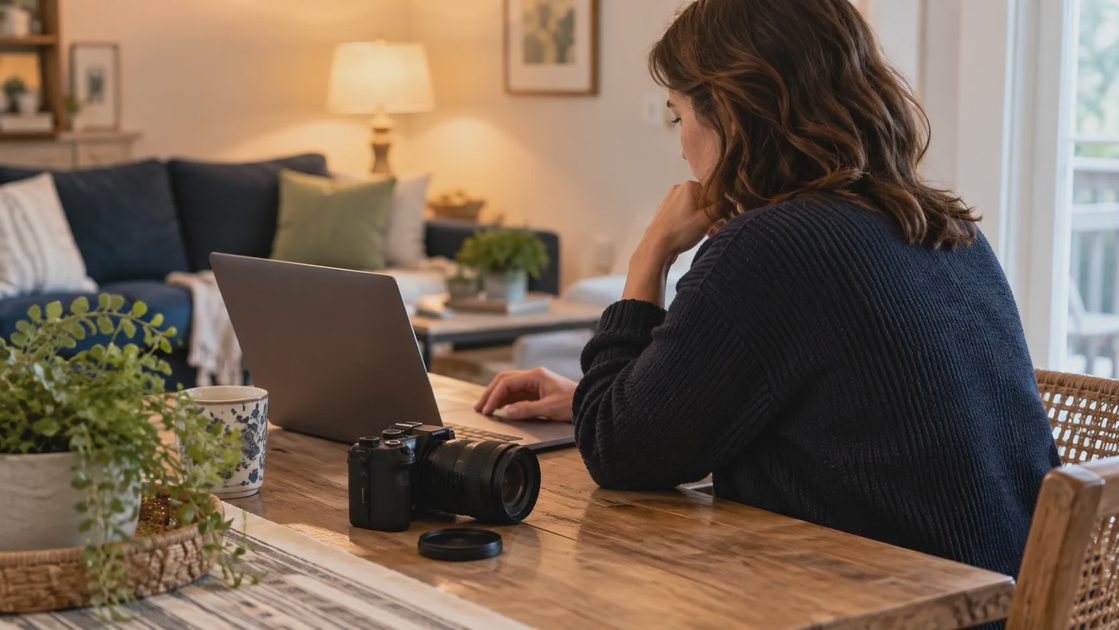
Choose a specific purpose: the front entrance, a delivery area, or another legitimate household need. Frame the view narrowly enough to avoid recording private indoor spaces or unnecessary neighboring property.
Check any applicable local requirements and household consent expectations before recording audio or shared areas. This article is a technical ownership guide, not a jurisdiction-specific legal assessment.
Activity zones may change notifications without preventing recording. Privacy masks or shutters can behave differently. Verify what the selected feature actually does rather than inferring protection from its name.
Adjust the view using what the camera actually records
Check the recorded or live image, not only the physical direction of the camera. A lens may include more of a neighboring window, interior doorway, or street than you expect. Night lighting and reflections can also change what is visible.
Where supported, review privacy masking, activity zones, and audio settings. These controls can have different purposes. An activity zone may limit notifications without removing areas from the recorded image. A privacy mask may hide a defined area. Verify the exact model's behavior before relying on either.
Use a practical view review:
Look at the image during the conditions relevant to the camera's job.
Identify areas that are useful, unnecessary, or sensitive.
Adjust physical placement within the product's instructions.
Configure supported privacy controls if needed.
Confirm the effect in saved footage as well as live view.
Audio should receive its own decision. A camera used to see packages may not need to capture nearby conversations. If you enable audio, explain its use to household members and consider the requirements that apply in your location. A general setup guide cannot determine every local recording obligation.
Review the view again after moving furniture, changing the camera angle, or enabling a new feature. The privacy boundary is a property of the current configuration, not the original installation.
Give access to people rather than sharing one login
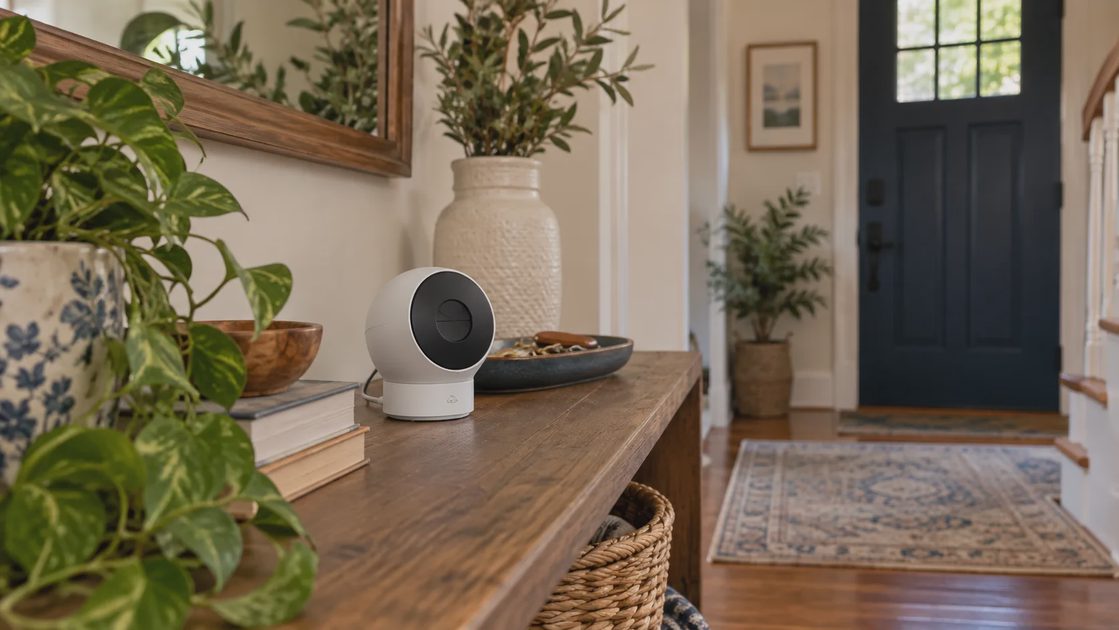
Use a unique account password and available multifactor authentication. Protect the email account used for recovery too. Save recovery information securely so stronger security does not accidentally lock the owner out.
Where supported, invite another person through the camera's sharing controls rather than handing over the owner login. Choose the minimum permissions needed. Remove former guests and obsolete sessions.
The FTC's camera-security guidance is a practical reference for account protection, updates, and access review. These steps reduce exposure; they do not guarantee that a camera can never be compromised.
Give each person access appropriate to their role
Use the vendor's supported invitation system where available. Individual access is easier to review and revoke than one household login shared through messages. It also avoids giving every viewer administrator-level powers simply because they need to see the entryway.
Decide whether each person needs live viewing, recorded clips, settings changes, or account administration. Products vary in how finely they separate these permissions. If the model only offers broad access, take that limitation into account when deciding whom to invite.
Person or role | Possible need | Access question |
|---|---|---|
Household owner | Configuration and account recovery | Who can maintain the account if the owner is unavailable? |
Other adult resident | Routine viewing and notifications | Can viewing be granted without sharing the owner login? |
Temporary helper | Limited task during a defined period | Can access be time-limited or removed afterward? |
Former resident or helper | No continuing household role | Has access actually been revoked? |
Check the platform account and any linked integrations separately. Removing access in one service may not automatically remove access through another. Review smart displays, shared tablets, voice-assistant integrations, and other places where the feed can appear.
After revoking unnecessary access, confirm the account's current viewer list. If the service supports session management, review unfamiliar sessions through its documented controls. Do not assume that changing one password alone addresses every previously granted permission.
Protect account recovery as well as sign-in
Use a unique password and enable supported multifactor authentication. The recovery email or other recovery channel also needs protection, because account recovery can become an alternate route to the camera account.
Store recovery codes according to the service's instructions, somewhere accessible to the authorized owner without putting them in a public or broadly shared document. A household should know who is responsible for recovery, but not need to distribute the actual codes to everyone.
Be cautious with unexpected messages claiming that a camera account needs verification. Open the service through its known app or website rather than using an unsolicited link. Account protection is easier when routine maintenance follows a consistent path.
Plan for a lost phone. Can the authorized owner sign in securely from another device? Can unnecessary sessions be revoked? Can another approved adult maintain necessary household access without learning the administrator's password? Review the supported options before a recovery event makes them urgent.
The FTC's camera guidance supports reviewing account protection, updates, and secure access. Your specific application's menu names and authentication choices should come from its current official instructions, not from a generic screenshot.
Make remote access a conscious choice
If you need remote viewing, use the manufacturer's supported secure method or a properly managed alternative. Do not expose the camera by casually adding router port-forwarding rules.
If remote access is unnecessary, check whether it can be disabled while retaining the required local functions. Do not assume every camera supports a fully local mode.
The FTC's Wi-Fi security guidance supports securing the router as part of the same system. Strong router settings cannot compensate for a reused camera-account password.
Review remote viewing deliberately
Remote viewing is useful when it supports the camera's purpose. It also adds a path through which the feed can be accessed. Understand whether your model uses a vendor service, a local recorder, or another supported arrangement.
Avoid exposing the camera directly to the internet through undocumented port forwarding. A camera that becomes reachable is not necessarily securely configured. Likewise, disabling firewall protections to solve a connection problem can create a larger problem than the original inconvenience.
If you use only local viewing, confirm what remains available away from home and what fails during an internet outage. If you use a vendor cloud service, check its supported security controls and service dependencies. Neither arrangement removes the need for updates and access review.
Network separation can help in an appropriately designed setup, but an isolated guest network may prevent a phone or recorder from discovering the camera. Preserve the required paths intentionally. For a household that does not want to maintain advanced networking, the vendor's supported secure arrangement may be more manageable than an unexplained collection of exceptions.
Check remote access using a legitimate connection away from the home network, when supported. Confirm both that authorized viewing works and that the intended account controls remain in place. Do not publish a live feed URL as a convenient household shortcut.
Set footage and notifications around the purpose
Review recording mode, retention, downloads, microphone use, and sharing links. Keep only the footage and alerts that serve the original goal, within supported options.
Test notifications and playback after changing settings. A privacy adjustment that unintentionally removes a required alert should be understood and resolved, not discovered during an incident.
Finally, explain the setup to the people who live there. They should know who has access, how to use a supported privacy control, and what the camera continues to record. A secure camera is an owned and maintained system, not a device you configure once and forget.
Choose retention and alerts around real usefulness
More retained footage is not always more useful. Decide which events you need to review and how long you need them available. The service's plan, storage capacity, and supported features may constrain that decision; use current documentation rather than assuming a universal retention period.
Separate local storage from cloud storage. A memory card or recorder can also contain sensitive footage. Know who can physically access it, whether the device supports protection for stored data, and what happens when storage fills.
Review these points:
Whether recording is continuous or event-based.
Whether audio accompanies the video.
How long footage remains available under the actual configuration.
Who can download, export, or share clips.
Whether exported clips remain after service-side deletion.
How the camera behaves when storage or internet service is unavailable.
For notifications, select events that deserve attention. Too many low-value alerts can train people to ignore the useful ones. Use supported activity zones and sensitivity settings, then verify that the intended event still generates an alert.
Also check notification previews on locked phones and shared screens. A camera alert can reveal an image or household activity outside the camera app itself. Adjust the receiving device's preview settings if that exposure is unnecessary.
Keep the software path supportable
Enable supported security updates or adopt a reliable review routine. Check both the camera firmware and the controlling app. Find the manufacturer's support policy for the exact model.
If support has ended, weigh continued use against the camera's sensitivity and connectivity. A replacement decision should include support longevity and account controls, not only image quality.
Use official update channels. Do not install an unknown firmware image solely because a forum post promises a useful feature.
Keep updates supportable and observable
Check whether the exact model remains supported and how updates are delivered. The camera, its app, and any recorder or bridge can each need maintenance. An updated phone app does not establish that the camera firmware is current.
If automatic updates are supported, understand their behavior and any interruption they may cause. If updates are manual, assign an owner and review date. Keep the camera powered and connected as the official procedure requires rather than interrupting an update because the feed briefly disappears.
After a significant update, test the functions that matter: live viewing, recording, permissions, and relevant alerts. Check whether a newly introduced feature changes privacy or storage behavior. There is no need to enable it merely because it appears in the interface.
A product that no longer receives needed security support deserves a separate replacement decision. Its image quality can remain good while its support path becomes unsuitable. Evaluate the actual vendor policy rather than assuming age alone determines safety.
Verify the useful camera after tightening controls
Security changes should preserve the camera's intended household job. Test with a harmless event that represents ordinary use, such as a household member walking through the intended entry area.
Test | Expected result |
|---|---|
Authorized live viewing | Correct viewer can see the intended camera |
Relevant event | Intended notification or recording occurs |
Unnecessary area | Excluded from view or handled by verified privacy controls |
Household access | Approved residents can use their own supported accounts |
Remote viewing, if enabled | Works through the documented secure path |
Retention review | Footage behavior matches the selected configuration |
If a change breaks the useful function, diagnose the specific path rather than undoing every protection. For example, an integration permission might need adjustment without sharing the main account login.
Finish with a brief household record: the camera's purpose, approved viewers, maintenance owner, and review date. Revisit it after a move, account change, new resident, or service change. A useful camera observes the right area, gives the right people access, and remains understandable to the household that owns it.