If you want to connect Alexa to WiFi, the goal is usually simple: get an Echo speaker online so you can play music, ask questions, control lights, or manage routines. The setup takes only a few minutes when your phone, Amazon account, and wireless network are ready. When it fails, the cause is usually an incorrect password, weak signal, outdated app, or a router using settings the Echo does not support.
A smarter home should feel easier, not harder. This guide follows the same order I use when helping homeowners set up an Echo in an existing home: prepare the network, put the device in setup mode, connect it through the Alexa app, and troubleshoot one variable at a time.
Prepare Your Phone, Echo, and WiFi Network
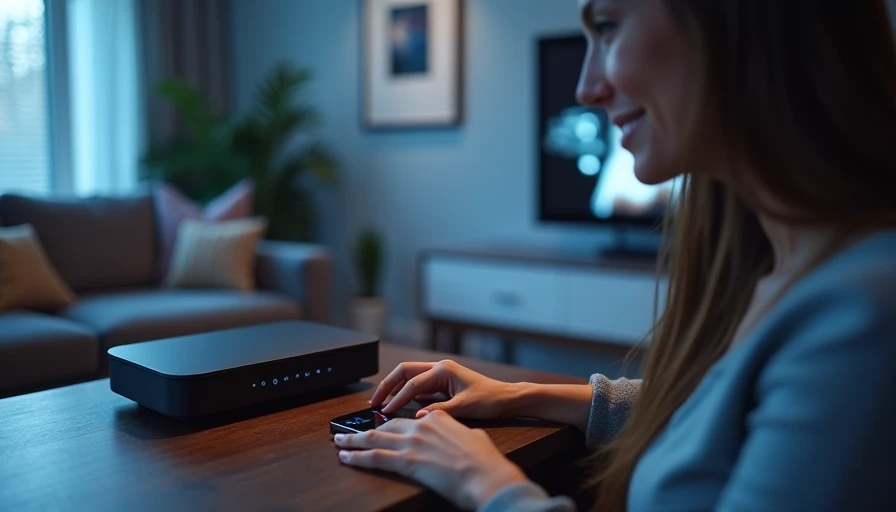
Before you connect Alexa to WiFi, place the Echo within a few feet of your router. You can move it later. Starting nearby removes signal strength from the initial diagnosis and gives the speaker the best chance of completing setup.
Install or update the Amazon Alexa app on an iPhone or Android phone. Sign in with the Amazon account you want to use for voice profiles, shopping settings, music services, and smart-home devices. Turn on Bluetooth and allow the app to use your local network or nearby devices when prompted. These permissions help the phone find the Echo during setup.
Have the exact WiFi password available, including capital letters, numbers, and symbols. A password saved in a browser is not always the same as the current router password. If your home has separate network names for 2.4 GHz and 5 GHz, either can work with many Echo models, but the 2.4 GHz option often reaches farther through walls. Do not begin by changing advanced router settings unless the basic process fails.
Also check that your phone is connected to the home WiFi network rather than cellular data or a guest network. A guest network can block communication between the phone and Echo even when internet access works normally.
The Step-by-Step Alexa WiFi Setup
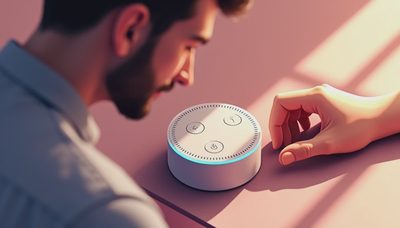
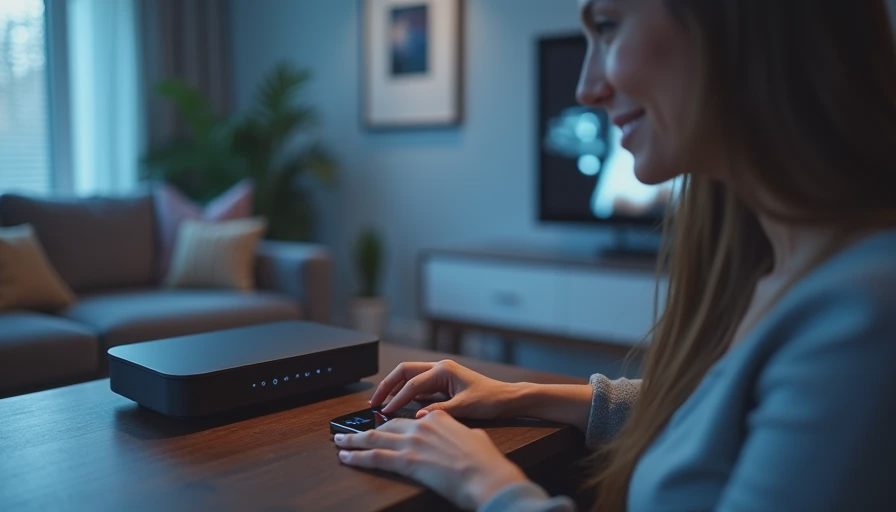
Open the Alexa app and tap More, then Add Device. Choose Amazon Echo, select the Echo model that matches your speaker, and follow the prompts. If the device is new, the app may find it automatically. If it does not, press and hold the Action button on the Echo until the light ring turns orange. On some models, the action is a button with a small dot; on others, the setup instructions shown in the app identify the correct control.
When the app displays available wireless networks, choose your home network and enter the password carefully. Keep the phone close to the Echo while the connection transfers. The speaker may announce that it is connecting, and the light ring may change color several times. Avoid unplugging it during this stage.
Once the connection succeeds, give the Echo a useful location, such as Living Room, Kitchen, or Bedroom. This matters when you later create routines or ask Alexa to control lights in a particular area. Test the result with a basic request such as, “Alexa, what time is it?” Then try a short music request or ask for the weather.
If you are helping someone else, finish the household profile instead of leaving the device attached to your own account. Review voice purchasing, calling, and communication settings before handing it over. A few minutes of setup now can prevent confusing account problems later.
What to Do When Alexa Will Not Connect
If you cannot connect Alexa to WiFi, do not reset every device in the house at once. First, verify that another phone or laptop can browse the internet on the same network. If nothing connects, restart the modem and router by unplugging them for about 30 seconds, then wait several minutes for service to return.
If other devices work, close and reopen the Alexa app. Confirm that the phone has Bluetooth enabled and that it is using the intended network. Reenter the WiFi password instead of relying on an old saved entry. A single incorrect character is enough to stop setup.
Next, move the Echo closer to the router and try again. Thick masonry, metal appliances, mirrors, and large appliances can weaken wireless signals. If setup succeeds beside the router but fails in the intended room, the problem is coverage rather than the speaker. A better router location or a properly placed mesh node is usually more useful than buying a new Echo.
When you connect Alexa to WiFi after changing the router name or password, the Echo still remembers the old network. Open the Alexa app, select Devices, choose the Echo, and use the device settings to change the WiFi network. If the app cannot reach the device, place it in setup mode and repeat the process. A factory reset should be the final step because it removes the device configuration and requires setup again.
Check Compatibility, Privacy, and Reliability
Most recent Echo speakers support standard home WiFi, but not every networking feature works equally well with every model. Avoid assuming that a device can use a captive portal, enterprise login, or public hotspot. Echo setup is most predictable on a normal private home network with a straightforward password.
If your router combines 2.4 GHz and 5 GHz under one network name, leave that arrangement alone unless setup repeatedly fails. Separating bands can help diagnose a problem, but it also creates more networks to manage. Likewise, a guest network can be useful for some smart-home products, yet it may prevent Alexa from discovering lights, plugs, or cameras on the main network.
Review privacy controls in the Alexa app after the speaker is online. Check voice recording settings, voice purchasing, communications, and connected skills. Disable features the household will not use. You do not need to connect every smart-home account just because Alexa offers the option. Fewer integrations mean fewer passwords, permissions, and possible failure points.
Reliability matters more than a successful first setup. Ask Alexa a question from the room where you normally use it. If the response is slow or frequently interrupted, test the signal before blaming the Echo. A stable network with five useful devices is better than a crowded system that constantly needs attention.
When the Problem Is the Router
Some older routers use security modes or wireless settings that create trouble for modern smart-home products. Updating router firmware can improve compatibility, but make a note of the current settings first. If you use a mesh system such as Eero, Google Nest WiFi, or TP-Link Deco, place nodes where they can communicate well with one another rather than hiding one behind a television or inside a cabinet.
If the Echo disconnects every day, look for a pattern. Does it happen when the microwave runs, when the router reboots, or when the speaker is moved to the garage? Test one change at a time: relocate the Echo, restart the network, update the app, or connect to a different band. This makes the cause visible instead of turning troubleshooting into guesswork.
You usually do not need to buy a new Echo to fix a network problem. Replace the speaker only when it has failing buttons, distorted audio, a damaged power adapter, or repeated failures on a proven stable network. Otherwise, correct the WiFi conditions and keep the working hardware.
A Simple Final Checklist
To connect Alexa to WiFi successfully, use the Alexa app, keep the phone and Echo near the router, confirm the exact password, and wait for setup to finish before relocating the speaker. Test a basic voice command, assign the correct room, and review privacy settings. If the process fails, test internet access on another device, restart the router, reenter the password, and try again with the Echo nearby.
That sequence solves most ordinary setup problems without unnecessary purchases or complicated networking changes. Start with the home you already have, change one thing at a time, and judge the result by daily reliability. Once the Echo stays connected, add smart lights or routines gradually so you always know which device is responsible if something stops working.