If you are searching for how to reset echo dot, you probably want one of three things: a speaker that connects to new Wi-Fi, a device that responds normally again, or an Echo Dot ready for another household. The good news is that most resets take less than five minutes and do not require tools. Before starting, identify whether you need a quick restart or a full factory reset. They solve different problems.
A restart removes temporary glitches while preserving your settings. A factory reset erases the Echo Dot’s saved Wi-Fi connection, device registration, alarms, and personal preferences. Use the lighter option first when the speaker is simply slow, frozen, or not responding.
Restart your Echo Dot before erasing it
The safest first step in how to reset echo dot troubleshooting is a power cycle. Unplug the Echo Dot from the wall, wait at least 30 seconds, and plug it back in. Give the speaker one to two minutes to start. The light ring should appear briefly, and Alexa should eventually respond to the wake word.
If the Dot has a separate power adapter, use the adapter that came with the device or one with the correct specifications. Avoid testing with a random low-power USB adapter, especially on older models. An inadequate adapter can cause repeated shutdowns that look like a software problem.
While the speaker is restarting, check your router. If phones, laptops, and other smart-home products also lost their connection, the Echo Dot is probably not the main issue. Restart the router only if necessary, and wait for the home network to return before testing Alexa again.
A restart is usually enough when music stops unexpectedly, the device takes a long time to answer, or the Alexa app temporarily cannot find the speaker. It does not remove the Dot from your Amazon account or clear its saved network details.
How to reset echo dot with the Action button
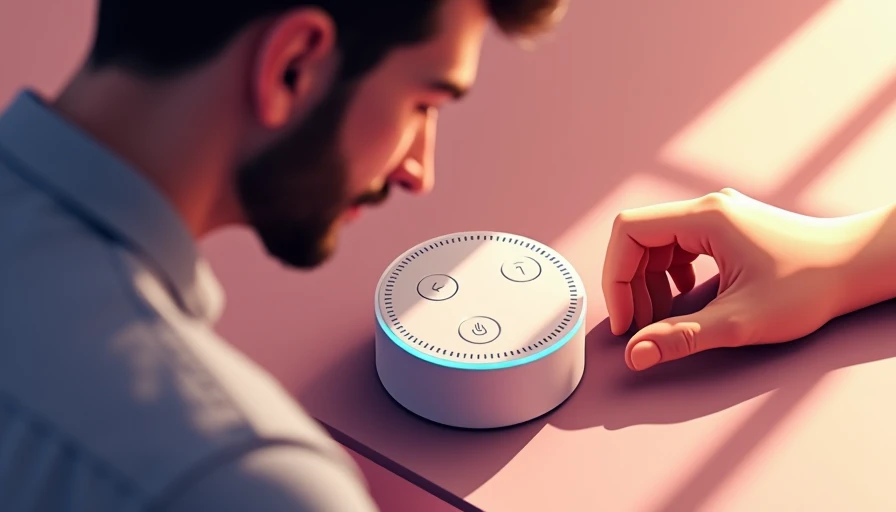
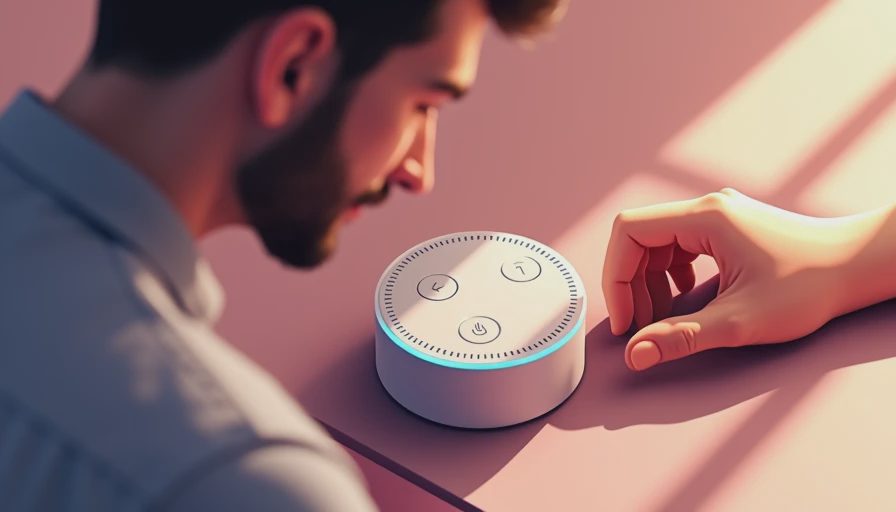
For most Echo Dot models, including the third-generation, fourth-generation, and fifth-generation versions, a factory reset uses the Action button. This is the button with a small circle symbol on the top of the speaker.
- Keep the Echo Dot plugged in and powered on.
- Press and hold the Action button for about 20 seconds.
- Continue holding it while the light ring turns off and then comes back on.
- Release the button when the light ring turns orange.
- Wait for the device to enter setup mode.
An orange light generally means the Echo Dot is ready to be configured. Open the Alexa app on your phone, select Devices, choose the plus sign, and tap Add Device. Select Amazon Echo, then choose Echo, Echo Dot, Echo Pop, or the model that matches your speaker. Follow the prompts to connect it to Wi-Fi and assign it to a room.
The exact light behavior can differ slightly by generation. If the light ring does not change after 20 seconds, unplug the unit, reconnect it, and try again after it fully boots. Do not repeatedly press several buttons at once; changing multiple inputs makes it harder to tell which step worked.
Resetting older Echo Dot generations
Older Echo Dot models use a different button combination. On many first-generation units, press and hold the Microphone Off and Volume Down buttons together for approximately 12 seconds. The light ring should turn off and then on again, indicating that the device has entered setup mode.
Second-generation Echo Dot units commonly reset with the Microphone Off and Volume Down buttons as well, although the timing and light response can vary. If your model does not respond, check the generation in the Alexa app or compare the speaker’s shape and button layout with Amazon’s current device support information.
This is one reason identifying the model matters before following a reset guide. A first-generation Dot has a different top-button layout from newer models, and applying the wrong instructions can leave you thinking the speaker is defective. If the buttons are worn, use firm, even pressure rather than forcing them.
After a factory reset, the Dot is no longer configured for your home. You will need the Amazon account used for setup, your Wi-Fi password, and a phone with the Alexa app. If two-factor authentication is enabled on your Amazon account, keep access to the verification method nearby.

When the Alexa app is the better solution
Sometimes you do not need to erase the hardware at all. If you are giving the Echo Dot to someone else, remove it from your Amazon account after the reset. In the Alexa app, open Devices, select the Echo Dot, tap the settings gear, and look for the option to deregister the device. Deregistration separates the speaker from your account so another person can register it properly.
If the device is still visible in the app but will not connect, open its settings and review the Wi-Fi network. The app may offer a Change Wi-Fi option that updates the connection without deleting every device preference. This is useful after replacing a router, changing a network name, or moving the speaker to a different home.
Do not confuse deregistration with a full factory reset. Deregistering handles account ownership, while the physical reset clears local configuration. When selling or giving away the speaker, do both when possible: reset the hardware, then confirm it no longer appears under your account.
Fix common reset problems
If the light ring stays dark, test another wall outlet and confirm the power adapter is fully inserted. If the speaker shows a red light, the microphone may be muted; press the Microphone Off button once and test again. A spinning orange light usually indicates setup or connection activity, so give it time before repeating the reset.
When setup fails after a reset, move the Echo Dot within a few feet of the router. Concrete walls, metal appliances, crowded 2.4 GHz networks, and distant mesh nodes can all interfere with initial pairing. Once setup succeeds, move the speaker back and test it from its normal location.
For a device that repeatedly loses Wi-Fi, update the Alexa app, restart the router, and check whether other smart-home products have the same problem. A factory reset cannot repair poor wireless coverage or an unreliable internet connection. It only removes the Dot’s stored configuration.
A practical reset checklist
Before starting, write down any important alarms, routines, or room assignments you want to recreate. A factory reset removes those settings from the speaker. Also check whether household members use the Dot for shopping lists, music services, intercom features, or smart-home controls.
Then follow this sequence: restart the device, verify the router, identify the Echo Dot generation, perform the correct button reset, reconnect through the Alexa app, and test a simple command such as setting a timer. Add music services and smart-home devices one at a time. This makes it easier to identify a compatibility or account problem.
You do not need to buy a new speaker simply because the Echo Dot stopped responding. In many homes, a restart, clean reset, or better router placement restores normal operation. Replace it only if the power supply, buttons, speaker hardware, or microphone remains faulty after basic troubleshooting. A smarter home should feel easier, not harder.