
When smart-home devices keep going offline, first determine what “offline” means. Is the device unpowered, disconnected from its radio network, missing from one app, or simply failing to run an automation?
Those faults require different fixes. A factory reset is a poor first step because it can erase a working configuration without identifying the failure.
Read “offline” as a symptom, not a diagnosis
An offline message means the application cannot currently communicate through its expected path. It does not, by itself, tell you whether the device lost power, left the local network, lost its controller, or became unreachable through a cloud service.
The distinction matters because different failures require different fixes. Factory-resetting a device will not repair an internet outage. Replacing a router will not fix a drained sensor battery. Adding a mesh node will not restore an expired account connection.
Begin by recording the exact message, the time, and the behavior that failed. “The lamp still responds to its physical button but cannot be controlled from the app” is more informative than “the smart home is broken.” Note whether the displayed device state is fresh or simply the last known state.
Keep normal household access available while you investigate. Locks, heating, and other important functions need their documented manual alternatives. Troubleshooting should not depend on deliberately disabling necessary equipment to see what happens.
Find the scope of the outage
Check whether one device, one brand, one room, or the whole system is affected. Note the time and what changed recently: a router replacement, password change, update, moved hub, or power interruption.
Try the device's physical control where safe. Compare its manufacturer app with the home platform. If local operation works while only a remote app fails, investigate the account, integration, or service path before replacing hardware.
If every internet-dependent device fails together, check the household internet connection and service status through official channels. Do not assume that local automations must also have failed.
Build a map of what still works
Check a few neighboring functions before touching settings. Can the phone reach an ordinary website? Can another smart device respond through the same application? Can the affected device respond through its manufacturer's app, a local controller, or its physical control?
What you observe | What it suggests | Next check |
|---|---|---|
One device fails; similar devices work | Device-specific power, configuration, or coverage issue | Device status and local environment |
Several devices on one bridge fail | Shared bridge or radio path issue | Bridge power and connection |
Multiple cloud devices fail but local control works | Internet, cloud, or account path issue | Internet access and service status |
Devices across the home fail together | Shared infrastructure or power issue | Router, controller, and outage history |
Device works in one app but not another | Integration or authorization issue | Supported integration status |
These are starting points, not guarantees. A device might have several independent control paths, and a cached interface can appear healthy without actually sending a command. Verify a real, nonessential action where appropriate rather than relying only on a green icon.
Write down the shared dependency. Devices failing together often have something in common: a power strip, bridge, access point, account, or internet service. Investigating that dependency first is usually less disruptive than treating each device as a separate fault.
Separate Wi-Fi devices from devices that use a bridge
Not every smart device joins your Wi-Fi directly. A Zigbee or Z-Wave sensor generally depends on a compatible controller or bridge. A Thread device depends on its Thread network and a supported path to the controller. A Matter label does not tell you which underlying network the device uses.
For a directly connected Wi-Fi product, check its documented network requirements. A phone working on a fast Wi-Fi band does not prove the product can join that same band. Use the exact model's instructions rather than changing the entire home's network to fit an assumption.
For a bridged product, check two separate connections: the device's connection to the bridge and the bridge's connection to the platform or network. The sensor can be healthy while the bridge is offline. Conversely, the bridge can be reachable while a remote battery sensor cannot communicate with it.
A simple path record helps:
Device name and connection type.
Bridge, controller, or border-router dependency where applicable.
Platform that owns its automations.
Whether normal commands require an external service.
Available physical or local control.
You do not need a network-engineering diagram. You need enough information to avoid applying Wi-Fi troubleshooting to a device that never joins Wi-Fi in the first place.
Inspect the recent change history
Ask what changed shortly before the disconnections began. Common candidates include a router replacement, new Wi-Fi credentials, a moved bridge, an account change, a firmware update, or a device plugged into an outlet controlled by a wall switch.
The change may have been made by someone else. A household member could have unplugged a bridge to charge a phone or moved an access point into a cabinet. A cleaner could have turned off a switched outlet. Check the physical arrangement before assuming an invisible technical fault.
Recent change | Why it may matter | Least disruptive response |
|---|---|---|
Router or Wi-Fi credentials changed | Device may still hold old settings | Follow documented network migration |
Bridge moved | Radio coverage and upstream connection changed | Check placement and connectivity |
Account password or permissions changed | Integration may need supported reauthorization | Review the affected account link |
Automation added | Device may be intentionally powered down | Review the rule and its schedule |
Software updated | Behavior or integration compatibility may have changed | Check official release and support notes |
A recent change is a clue, not proof. If restoring a documented setting solves the issue, observe normal use long enough to see whether the pattern stops. Do not declare a permanent fix after a single successful command.
Check power before blaming the network
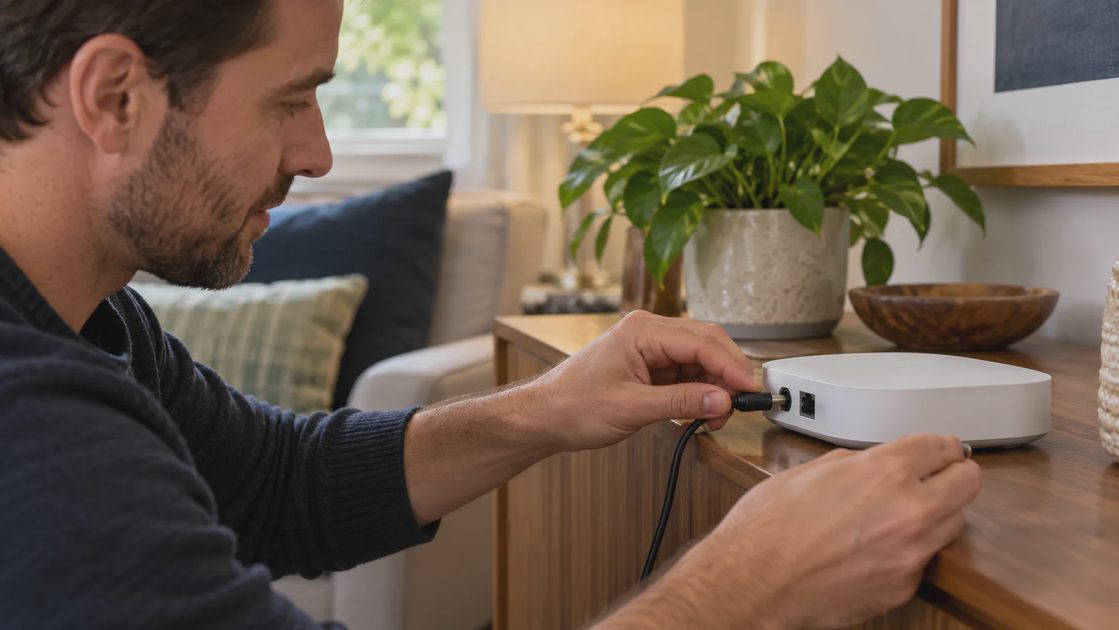
Inspect intact low-voltage cables and approved power adapters. For a battery device, use the specified replacement type and follow the manual. A displayed battery percentage may be delayed or only an estimate.
Google's Nest offline troubleshooting includes battery/power and router checks. Its thresholds and procedures belong to the named thermostat models; they are not a universal test for other devices.
Stop using equipment with damaged cords, unusual heat, odor, or battery swelling. Do not open mains-powered adapters to investigate an outage.
Investigate intermittent power carefully
A device that reconnects after each power interruption can look like it has a wireless problem. Look for a status light restarting, repeated boot notifications, or a loss that coincides with someone using a wall switch.
For battery devices, follow the exact model's battery type and replacement instructions. A battery indicator is useful, but it may not explain every power issue. Inspect user-accessible contacts only as the manual permits. Do not open sealed packs or substitute an apparently similar battery chemistry.
For externally powered devices, use the approved supply and inspect accessible cables for damage. A connector that looks seated may have been disturbed when furniture moved. Do not improvise a replacement adapter from a drawer based only on whether the plug fits.
If there is unusual heat, odor, visible damage, or a suspected electrical installation problem, stop the routine troubleshooting and use the appropriate qualified service. Power reliability is a prerequisite to network reliability; software changes cannot make a damaged connection safe.
Use a temporary location to test a coverage theory
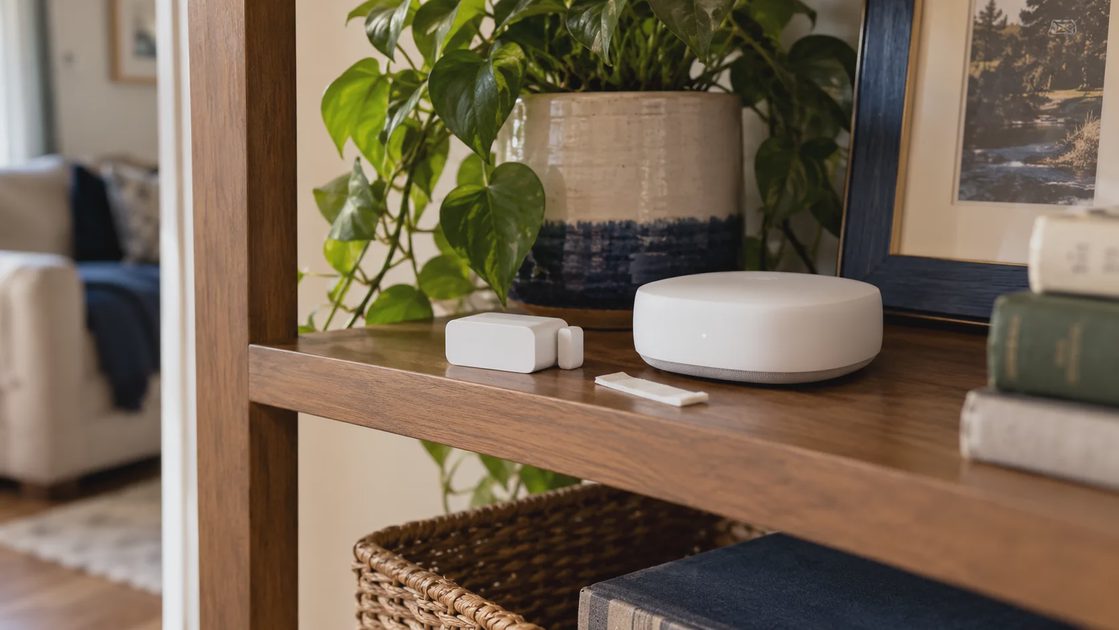
For a movable noncritical device, try a supported temporary position closer to its actual access point, bridge, or coordinator. Keep the configuration otherwise unchanged.
If it works there repeatedly but fails in its installed position, coverage or interference becomes a stronger hypothesis. If it fails equally nearby, investigate power, software, or hardware.
Google's Wi-Fi placement guidance stresses open placement and strong links between mesh points. Moving a point into a dead zone is not automatically an improvement.
Remember that a Zigbee or Thread sensor is not necessarily connected through Wi-Fi. Identify its real radio path before adjusting the router.
Test coverage as a controlled comparison
Moving a portable, noncritical device temporarily can help distinguish a location problem from a device problem. Keep its power arrangement and settings the same where possible. Move it closer to the relevant access point or bridge, then observe the same ordinary task.
The result has limits. A device working nearby supports a location or radio-path hypothesis, but it does not prove that buying another access point is the best remedy. The original position may be shielded by furniture, a metal enclosure, or building materials. The bridge itself may be poorly located.
Record:
Original location and failure pattern.
Temporary location and unchanged settings.
Time and task observed at each location.
Whether the improvement repeats.
Any other change, such as a different outlet or power supply.
If you changed the outlet as well as the location, the comparison tests both power and coverage. Say so. Otherwise you may interpret a power improvement as a wireless improvement and buy the wrong equipment.
Do not move fixed, wired, or safety-relevant products merely to create a test. Use vendor diagnostics or qualified assistance when relocation is not appropriate.
Review router changes without weakening security
If a directly connected Wi-Fi device stopped working after a router change, check the manufacturer's supported security modes, frequency requirements, and setup procedure. Avoid disabling encryption or opening inbound ports simply because an online comment says it made pairing easier.
Guest-network isolation can block communication that some local integrations need. A separate network is not automatically wrong, but it must support the required paths deliberately. If you cannot explain which device needs to communicate with which controller, return to the vendor's supported arrangement before adding complex segmentation.
A combined network name for multiple bands is not inherently a problem for every smart device. Some setup procedures are sensitive to the phone's connection during enrollment, while ordinary operation may work normally afterward. Follow the product-specific procedure instead of treating one troubleshooting trick as a universal requirement.
Change one relevant setting at a time and preserve the previous value. Keep a record of the original security configuration so a temporary test does not become an unexplained permanent reduction in protection.
Restart only the layer that the evidence points to
Use the documented restart procedure for the affected component. Save logs and settings first when available. Avoid restarting the router, hub, bridge, and endpoint together; you lose the ability to identify which change helped.
Check supported firmware and app updates. If a problem began immediately after an update, collect versions and timestamps for support rather than applying random network settings.
A routine failure with a device still reachable is an automation problem, not proof of disconnection.
Restart in an order that preserves evidence
A restart can clear a temporary fault, but it can also erase useful context. Before restarting, record error messages and which services remain available. Then target the smallest layer supported by the observations.
For one unresponsive device, follow its documented restart. For several devices sharing a bridge, inspect and, if appropriate, restart that bridge. For a confirmed router problem, follow the router's procedure and warn household members about the interruption.
Wait for the relevant device's normal startup and reconnection process rather than issuing repeated restarts. Some systems need time to rebuild their connections. Rapidly changing several components leaves you unable to tell whether the first action had already worked.
A restart that restores function is a recovery, not necessarily a root-cause diagnosis. Keep an incident log if the failure returns. Repeated recovery at the same time or under the same conditions can reveal the underlying dependency.
Reset only with a recovery plan
Before a factory reset, preserve setup codes, account details, supported backups, and a list of affected rules. Understand how to add the device again and maintain necessary manual access.
If the failure persists at a known-good location with approved power, gather the model, firmware, error messages, and a concise reproduction for the manufacturer.
A useful diagnosis ends with a specific failing layer. “Everything is unreliable” is the starting complaint; power, location, service, or configuration evidence is what makes the next action sensible.
Reserve factory reset for a documented recovery plan
A factory reset may remove network settings, account ownership, pairing records, calibration, or automations. Its effects vary by product. Before proceeding, read the exact reset instructions and distinguish restart, network reset, and factory reset.
Prepare the items needed for recovery: the correct account, setup code, supported controller, and any configuration record. Identify rules that reference the device. A re-enrolled device may appear as a new entity, leaving old automations pointing at something that no longer exists.
After resetting, verify basic operation before rebuilding every routine. Test physical control, app control, state reporting, and one relevant automation. Restore functions deliberately so a hidden old rule does not compete with the rebuilt configuration.
If the device has failed repeatedly despite supported troubleshooting, contact the manufacturer with the incident record. Include model, firmware where available, connection path, symptoms, and controlled tests. That is more useful than a long list of undocumented resets.
Judge the fix by normal household use
The fix should survive the conditions that previously triggered the problem. If disconnections occurred overnight, observe overnight use. If they occurred when a particular door closed or the bridge was moved, test that ordinary condition safely.
Record the remedy and why it was chosen. “Moved the bridge out of the metal cabinet after a repeatable location test” explains more than “fixed Wi-Fi.” Keep the manual alternative available for important functions even after reliability improves.
A dependable smart home is built from understandable power, network, account, and control paths. When a device goes offline, identifying the failed path usually provides a better answer than adding equipment or starting setup again from scratch.