If your Ring camera is offline, stuck during setup, or responding slowly, learning how to reset a ring doorbell can save you from buying a replacement too soon. A reset is different from a simple restart: it can erase the device’s Wi-Fi connection, settings, and ownership data. Before you begin, identify the problem and decide whether you need a reboot, a network repair, or a full factory reset.
A smarter home should feel easier, not harder. In most cases, this job is beginner-friendly and takes five to ten minutes, although reconnecting the device afterward can take longer. Keep your Ring account password, Wi-Fi password, and phone nearby.
Restart or factory reset: choose the right fix
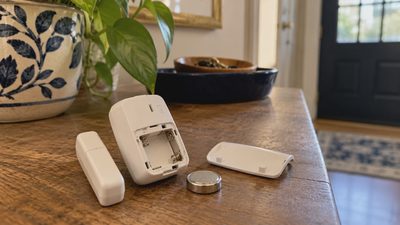
A restart turns the doorbell off and back on without removing its settings. Try that first when the live view is slow, notifications are delayed, or the app temporarily cannot reach the camera. For a battery model, remove the battery for about 30 seconds, then reinstall it. For a wired model, switch off the correct circuit breaker for 30 seconds before restoring power. Do not remove wiring or touch exposed terminals.
A factory reset is more thorough. It is useful when you are giving the doorbell to someone else, changing ownership, troubleshooting repeated setup failures, or preparing to connect it to a different Wi-Fi network. It removes stored network information and usually requires setup from the beginning. If the device is still registered to your account, remove it through the Ring app after resetting it or before transferring ownership.
Before resetting, check the simple causes. Charge a removable battery, confirm that your router is working, and look at Device Health in the Ring app. If other devices in the house are also offline, resetting the doorbell will not solve a router or internet service problem.
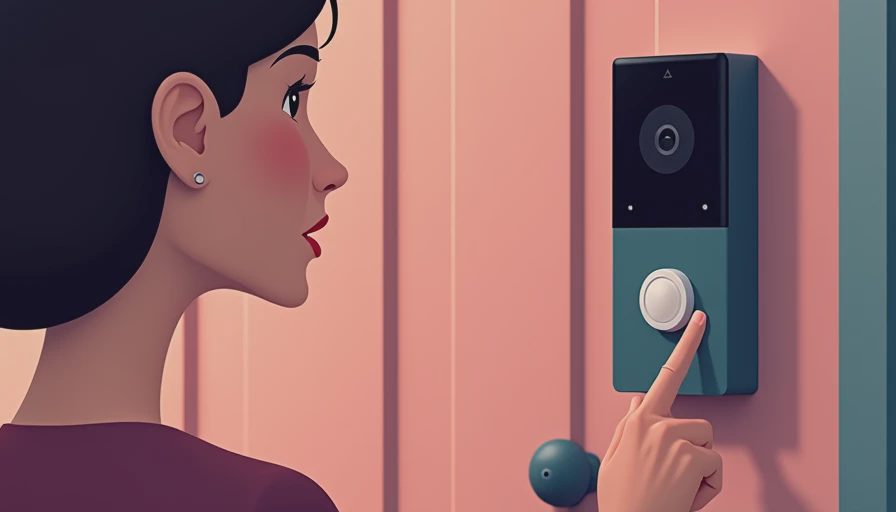
How to reset a ring doorbell using the physical button
The exact button location varies by model, but the basic process is similar. First, leave the doorbell mounted if the reset button is accessible. If not, use the small Ring screwdriver or the appropriate security bit to remove the faceplate. Never pry against the camera lens or force the cover.
- Make sure the doorbell has power. Charge a battery-powered unit or confirm that a wired model is receiving power.
- Find the setup or reset button. It is commonly on the side, back, or front of the device, depending on the generation.
- Press and hold the button for about 20 seconds. Release it when the front light pattern changes or the device announces that it is entering setup mode.
- Wait several minutes. The doorbell may restart, flash, or remain quiet while it clears its settings.
- Open the Ring app, choose Set Up a Device, and follow the instructions for Wi-Fi and location access.
If you are unsure whether the reset started, hold the button again for a full 20 seconds rather than pressing it repeatedly. Button behavior differs between models such as Ring Video Doorbell, Doorbell 2, Doorbell 3, Doorbell 4, and Doorbell Pro. Use the model name shown in the Ring app or on the original packaging to confirm the correct procedure.
How to reset a ring doorbell when it will not connect
After a factory reset, the doorbell is not automatically fixed. It needs a strong enough wireless signal at the front door and a compatible network configuration. During setup, stand near the router if possible, then move the device back to its normal location after it connects. This separates a setup problem from a coverage problem.
Most Ring doorbells use 2.4 GHz Wi-Fi, while some newer models can also use 5 GHz. A combined network name can work, but band steering sometimes makes setup unreliable. If the app repeatedly fails, temporarily use the router’s 2.4 GHz network. Avoid guest networks that block communication between devices, and check that the Wi-Fi password does not contain a typing error.
Restart the router before trying again. Then close and reopen the Ring app, check for app updates, and repeat setup one variable at a time. Do not change the router name, install a mesh node, and reset the doorbell simultaneously. If you do, you will not know which change helped.
A wired doorbell also needs sufficient voltage from its transformer. A weak transformer can produce symptoms that look like a software failure, including random restarts and a blank live view. If electrical testing is needed, use a qualified professional rather than opening the electrical box yourself.
Privacy and ownership checks after the reset
A reset is especially important before selling, donating, or handing a Ring doorbell to a tenant or new homeowner. Remove the device from your Ring account, cancel any recording subscription connected to it, and confirm that shared users no longer have access. Review your Ring account’s authorized devices and enable two-step verification if it is not already active.
Resetting the hardware does not erase video that was already stored in your Ring account. Review and delete recordings according to your privacy preferences before transferring the device. Also remove the doorbell from Alexa or other connected services if you no longer want voice commands or routines linked to it.
If you are keeping the device, check motion zones, motion sensitivity, notification schedules, and video settings after setup. Factory defaults can change the behavior you had carefully adjusted. Walk past the camera at different distances and confirm that the doorbell detects useful activity without sending constant alerts for traffic or trees.
When a reset does not solve the problem
Knowing how to reset a ring doorbell is useful, but a reset cannot repair a failed battery, damaged charging port, defective transformer, or weak Wi-Fi signal. A battery that drops quickly from full charge may be aging, especially after years of outdoor temperature changes. A wired model that reboots whenever the chime activates may need electrical diagnosis rather than another software reset.
Look for physical damage, moisture inside the housing, a loose mounting connection, or a button that feels stuck. Clean the lens with a soft, dry microfiber cloth, but do not spray cleaner directly onto the camera. If the doorbell works near the router but fails at the entrance, consider improving coverage with a properly placed mesh access point or Ring Chime Pro instead of repeatedly resetting the camera.
Replacement makes sense when repair costs approach the price of a new unit, the battery is no longer dependable, or the model no longer receives useful software support. Compare the total cost, including a new battery, transformer, mounting hardware, and any subscription you actually need.
Quick recovery checklist
For a reliable recovery, follow this order: identify the model, charge or power the doorbell, restart it once, inspect Device Health, and then perform the factory reset only if the simpler steps fail. Write down your Wi-Fi name and password before setup. After pairing, test live video, the doorbell button, motion alerts, two-way audio, and night vision.
If the app cannot find the device, confirm Bluetooth and local network permissions on your phone. Keep the phone close during pairing, and wait for each setup screen to finish before tapping ahead. A flashing light usually indicates a status change, not necessarily a fault, so give the device a few minutes before repeating the process.
When you follow these steps, how to reset a ring doorbell becomes a straightforward maintenance task instead of a guessing game. Start with the least disruptive fix, change one thing at a time, and replace the hardware only after power, Wi-Fi, account access, and settings have been checked.