A smart door lock should be a dependable door lock before it becomes part of an automation. That means the door closes properly, the bolt moves without forcing the door, and household members can enter and leave using the supported local controls. App access and automatic locking come after those basics.
The useful order is door fit, hardware installation, local operation, account ownership, network connection, user access, and finally automation. The exact installation and calibration sequence still comes from your lock's manual. This guide helps you organize the project and verify each stage before relying on the next one.
It applies primarily to residential smart deadbolts and retrofit deadbolt controls in the United States. Lever locks, multipoint doors, shared-building access, and other hardware can have different requirements. Check the actual product and door rather than transferring instructions from a superficially similar installation.
Before removing anything, decide how you will get back inside
Do not start by deleting the old access arrangement. First identify the supported fallback for the proposed lock. Depending on the model, that could involve a physical key, local keypad, manufacturer-approved emergency power procedure, or another authorized entrance. No single fallback applies to every product.
Have a practical plan for the installation period. Someone should remain able to access the home if setup takes longer than expected. Keep the door under your control during initial testing, and avoid leaving the house with the new lock as your only unverified entrance.
Your preparation checklist is short:
Confirm permission if the property is rented or shared.
Match the lock's exact model to its installation manual.
Check door dimensions and the supported hardware arrangement.
Identify the required batteries and any supporting network equipment.
Preserve authorized backup access during the change.
Choose who will own the administrator account.
Set aside time to test without rushing to leave.
Schlage's support index separates installation instructions by model, including distinct Encode, Encode Plus, Connect, and Arrive entries. That is a useful reminder that a brand name is not an installation specification. Schlage: model-specific installation instructions.
Confirm whether you are replacing or retrofitting
A full replacement can change both the outside and inside deadbolt assemblies. A retrofit product may retain some existing hardware. Compatibility then depends on the retained lock and the manufacturer's approved adapter or mounting arrangement.
Consider practical consequences beyond appearance. Will existing keys remain usable? Will the interior unit interfere with another handle, trim, or screen door? Can someone comfortably turn the inside control? Is the battery cover accessible without removing unrelated hardware?
If a new hole, door modification, or uncertain security hardware is involved, get an appropriate locksmith or installer assessment. A smart feature should not lead you to improvise the door's basic mechanical arrangement.
Stage 1: Make the door work without electronics
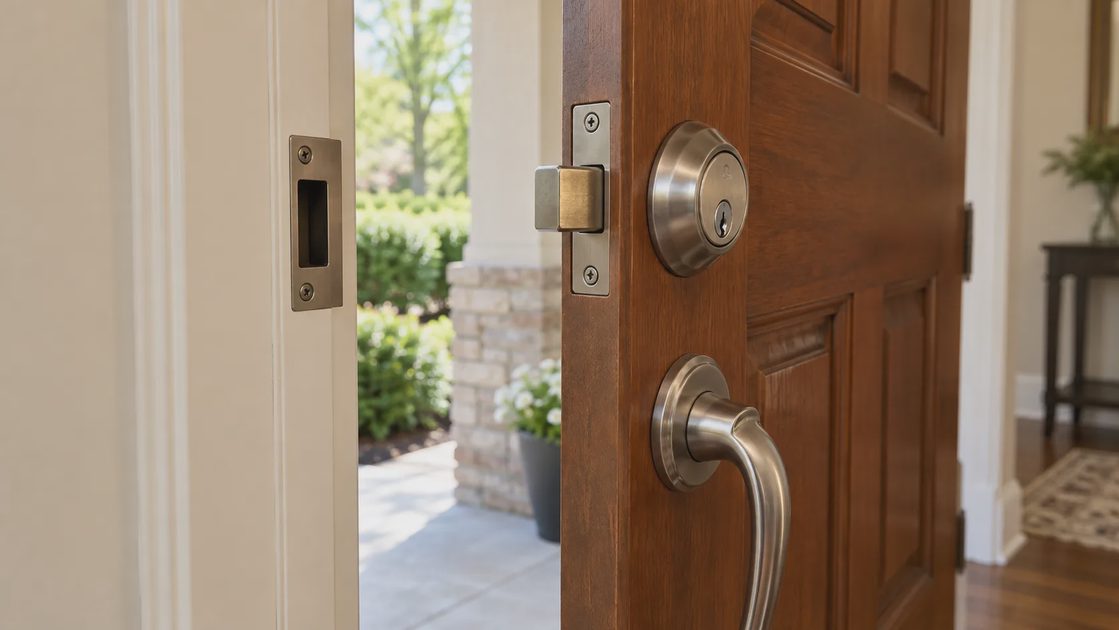
Operate the existing deadbolt with the door open, then closed. Notice whether closing the door changes the effort. If you must lift, pull, or push the door to lock it, record that condition before replacing anything.
Schlage identifies misalignment, weather stripping, and hinge problems among reasons a door may not latch properly. Its guidance supports checking the door itself before blaming new lock electronics. Use model-specific requirements for any correction; this guide does not prescribe cutting or drilling dimensions. Schlage: door alignment troubleshooting.
The goal is consistent mechanical movement with the door in its normal closed position. An electric motor should not be expected to overcome a fit problem that a person compensates for by leaning on the door.
Observation before installation | What it suggests | Appropriate next step |
|---|---|---|
Bolt moves freely open but binds closed | Door-to-frame fit needs investigation | Assess alignment and strike fit |
Door needs lifting to latch | Door or hinge condition may contribute | Obtain a mechanical assessment |
Closing pressure changes by season | The problem may be intermittent | Record conditions and evaluate the fit |
Existing deadbolt is stiff even open | The lock mechanism may be involved | Assess retained hardware before retrofit |
Door cannot stay securely closed | Installation cannot start with a sound baseline | Resolve the door problem first |
Do not change strike hardware casually to make a motor stop complaining. The fit, fasteners, and security function need to remain appropriate. If the correction exceeds your knowledge, involve a locksmith or qualified door professional.
Stage 2: Install the hardware using its own sequence
Lay out the supplied parts and compare them with the manual before removing the old lock. Keep old parts together until the new installation is verified. Do not mix a new assembly with leftover hardware unless the manufacturer permits that combination.
Follow the product's required sequence for mounting, routing any internal cable, inserting batteries, and determining the door's handing or bolt travel. “Handing” refers to the orientation the lock needs to operate correctly. Some models identify it automatically; others use a specific procedure.
During assembly, watch for obvious interference rather than compensating with force. A pinched cable, misaligned mounting plate, or incorrectly seated component can create a problem that looks electronic after the batteries are installed. Use the manual's fastening instructions rather than tightening until the housing distorts.
Where the manual calls for open-door calibration or setup, maintain that condition. Do not substitute a closed-door trial because it seems more realistic. Complete the prescribed initialization before assessing normal closed-door use.
Treat the first successful motor movement as a starting point. It shows that something moved under those conditions; it does not establish that the installation, access methods, and reporting all work reliably.
Stage 3: Verify local locking and unlocking
Before creating a whole-home routine, test the lock as a standalone door control. Follow the manual to verify the interior control and any supported exterior method. Check operation open and closed at the appropriate stages, while keeping authorized access available.
Then compare the physical result with what the lock reports. A command to lock is not the same observation as a fully extended bolt. Likewise, a lock-state report is not necessarily a door-closed report. Some systems use a separate door-position sensor, and others do not provide that information.
Record these separately:
Test | What to observe |
|---|---|
Interior manual control | A person can operate it comfortably |
Local exterior access | The approved key, code, or other method works |
Motorized locking | The bolt reaches its intended position without door manipulation |
Motorized unlocking | The bolt retracts and the door opens normally |
Reported lock state | Matches the physical lock position |
Door-position reporting, if supported | Correctly distinguishes open from closed |
Repeated ordinary use | No recurring binding or inconsistent result |
A repeated grinding sound, incomplete bolt movement, or recurring jam deserves investigation before networking. Do not repeatedly trigger the motor to prove that it can sometimes succeed. Stop, preserve access, and consult the installation troubleshooting instructions.
Stage 4: Set up account ownership and recovery
Choose an administrator account that will remain available to the household. Avoid leaving permanent ownership with a temporary installer or setting up the lock under an account nobody else knows how to recover.
Use a unique account password and enable supported multifactor authentication. Keep recovery information in a secure place. The household instruction note should explain where to find recovery help without exposing passwords or access codes.
Before inviting other users, distinguish three permissions:
Administration: Changing settings, adding users, and managing ownership.
Regular access: Locking or unlocking through an approved method.
Temporary access: Entry limited to a purpose, person, or schedule where supported.
Those are planning categories, not guaranteed feature names. Review the actual service's permissions. An invitation to a home platform may expose more devices or capabilities than a dedicated lock code.
For secondhand equipment, follow the manufacturer’s ownership-transfer procedure before trusting it as a home access device. A local reset should not be assumed to revoke every previous account relationship. Confirm that the device can be registered and managed by the intended owner.
Stage 5: Connect the lock to the correct system
A lock might use Wi-Fi, Bluetooth, Z-Wave, Zigbee, or Matter over Thread. The radio determines part of the connection path; the exact model and platform determine the available features.
Check supporting hardware before beginning app setup. A compatible hub, bridge, Matter controller, or Thread border router may already be present, but a similar-looking speaker or router does not establish that it performs the required function. Verify the exact generation and role.
Start with the manufacturer's documented setup route. Update supported software as required, keep the phone near the lock during the relevant pairing steps, and grant only the permissions needed for that process. Do not disable router protections indiscriminately to make a failed pairing attempt succeed.
After connection, test local app control before away-from-home control. That separates basic communication from the remote-access path. A remote failure can occur even when the lock's local operation is fine, so record which action fails rather than calling the entire device broken.
Also identify which system runs each automation. If both the vendor app and your home platform have automatic locking enabled, one setting can complicate the behavior of the other. Begin with a single clearly identified owner for each routine.
Keep status and permission separate
Seeing the lock in an app is not proof that every invited person can use it. Test from the intended user's account or local credential, not only the administrator's phone.
Similarly, receiving a notification does not establish that a command completed. Inspect the reported result and physical behavior during controlled testing. Keep notification wording in perspective: “command sent” and “locked” can represent different stages.
For model-specific features such as guest-code synchronization or home-platform access, check the current documentation. Connectivity labels alone do not settle whether those features work through the chosen integration.
Stage 6: Give each person the access they need
Avoid one shared household code when the product supports individual credentials that fit your needs. Separate access makes it easier to revoke one person's permission without changing everyone else's routine. Never publish code examples that could become real household credentials.
Create regular access first, then temporary access. Where schedules are supported, check the time zone, start and end dates, and whether credentials are delivered to the lock before the visitor arrives. Some changes may depend on connectivity or synchronization.
A hypothetical access plan might look like this:
Person or purpose | Intended access | What to verify |
|---|---|---|
Household adult | Regular entry and agreed administration | Independent access and account recovery |
Child who needs entry | A supported local method | Can use it comfortably without admin rights |
Recurring helper | Individual access within the required schedule | Actual allowed times and revocation |
One-time visitor | Temporary credential where supported | Activation, expiry, and delivery |
Installer after completion | No ongoing access unless explicitly wanted | Ownership and permissions reviewed |
Explain the local fallback to the people who need it. A child arriving home should not discover for the first time that their phone is required, its battery is empty, or a newly enabled setting changes how the door behaves.
Stage 7: Enable automatic locking only after ordinary use works
Automatic locking is an additional behavior to evaluate. It is not a cure for an unreliable bolt or an incomplete access plan.
Check whether the setting uses a fixed delay, a supported door-position signal, or another documented condition. A timer can command the bolt while the door is open unless the product prevents that behavior. A door sensor must be installed and verified if the routine depends on it.
Start conservatively and observe the household's real patterns. People may unload groceries, supervise children, collect mail, or carry items between the house and garage. A setting that repeatedly locks people out during those activities needs adjustment.
Use a simple worksheet:
What event starts the locking behavior?
How does the system know the door is closed, if it needs to?
What happens when someone pauses in the doorway?
How does a person regain entry without the administrator's phone?
Which app or platform owns the rule?
How can the household disable it deliberately?
Delay automatic unlocking until you have evaluated the exact feature, its safeguards, and whether the household wants it. Location-based routines and proximity features differ; one phone's position should not be treated as universal proof of who is at the door.
Use the symptom to choose your troubleshooting branch
If a problem appears, first locate the layer involved. The door, motor, local credential, network, account, and automation can each fail differently.
Symptom | Start here | Avoid starting with |
|---|---|---|
Works open, binds closed | Door fit and mechanical alignment | Router replacement |
Local keypad works, app does not | Account and connection path | Cutting or adjusting door hardware |
Main user's app works, guest access fails | Guest permission and credential status | Resetting the entire lock |
Local app works, remote app fails | Remote service and home connectivity | Reinstalling the bolt |
Lock behaves unexpectedly on a schedule | Automation ownership and settings | Assuming the hardware is defective |
Battery warning returns unusually quickly | Approved battery type, fit, operation, and documented diagnostics | Buying repeated batteries without investigation |
Make one supported change at a time and note the result. Factory resetting can erase credentials and settings, so reserve it for a documented recovery process after you have protected household access.
Plan for maintenance before calling setup complete
A connected lock needs an owner after installation day. Record the battery specification, low-battery indication, update process, and support contact. Check the backup access method periodically through a controlled procedure appropriate to the model.
Keep the battery compartment accessible. If the lock uses replaceable cells, follow the manufacturer's type and replacement instructions rather than mixing old and new batteries or guessing that rechargeable cells are interchangeable.
Review access when household circumstances change. Remove unnecessary guest credentials, update former installer permissions, and verify account recovery when a phone or email address changes. These are ordinary ownership tasks, not reasons to continually rebuild the system.
The setup is complete when the door fits, the lock operates locally, people have verified access, remote features behave as intended, and automation adds a benefit without creating repeated interruptions. Keep that order. A front door should become easier to manage while remaining understandable every time someone needs to enter or leave.